
Personnel Module
I. Filters
Upon entering this module, the homepage will be displayed with the filter open to perform the corresponding search.
To obtain information, you may complete the following fields. By default, the country associated with the user will be shown:
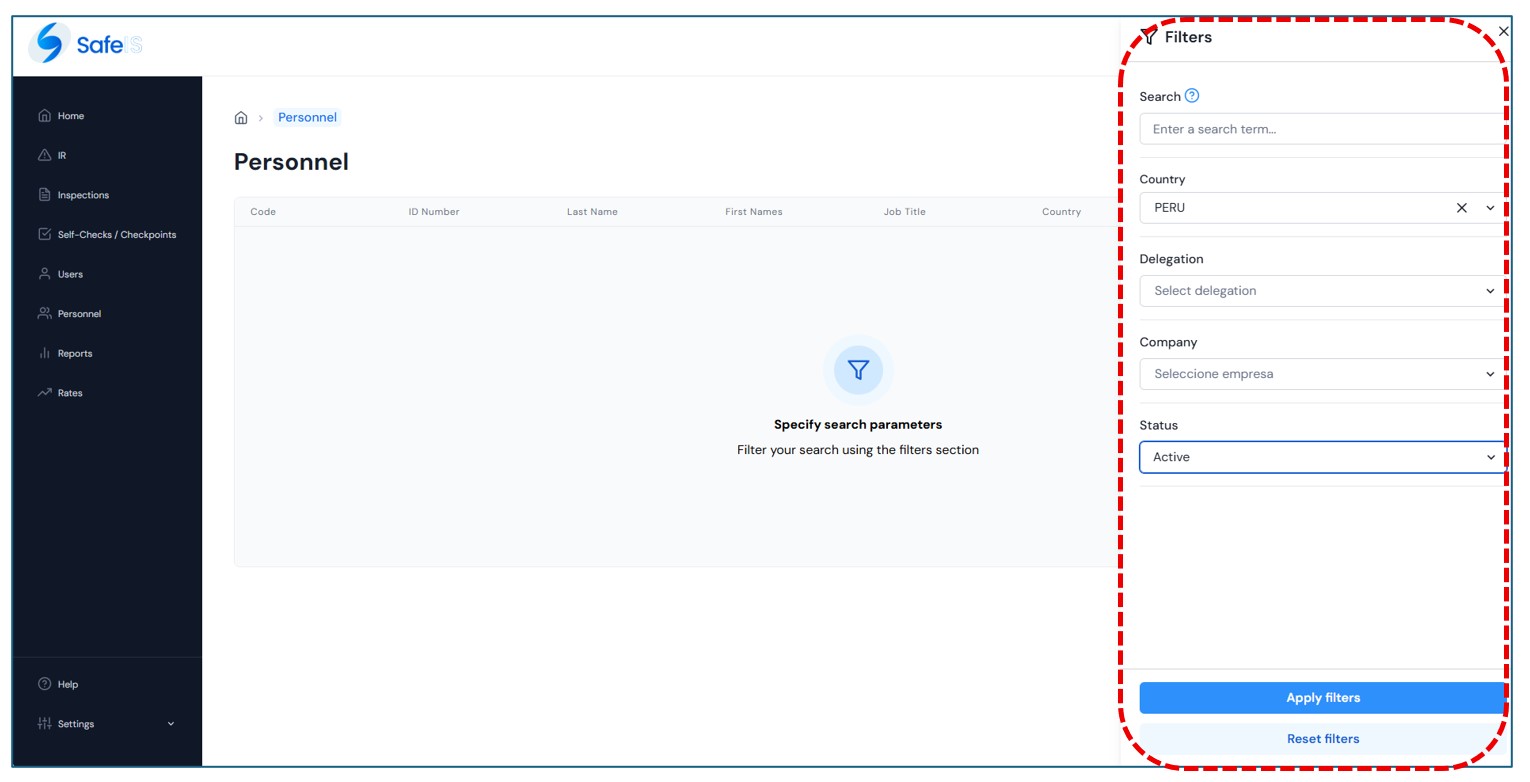
Click the “Apply Filter” button to obtain results based on the selected criteria.
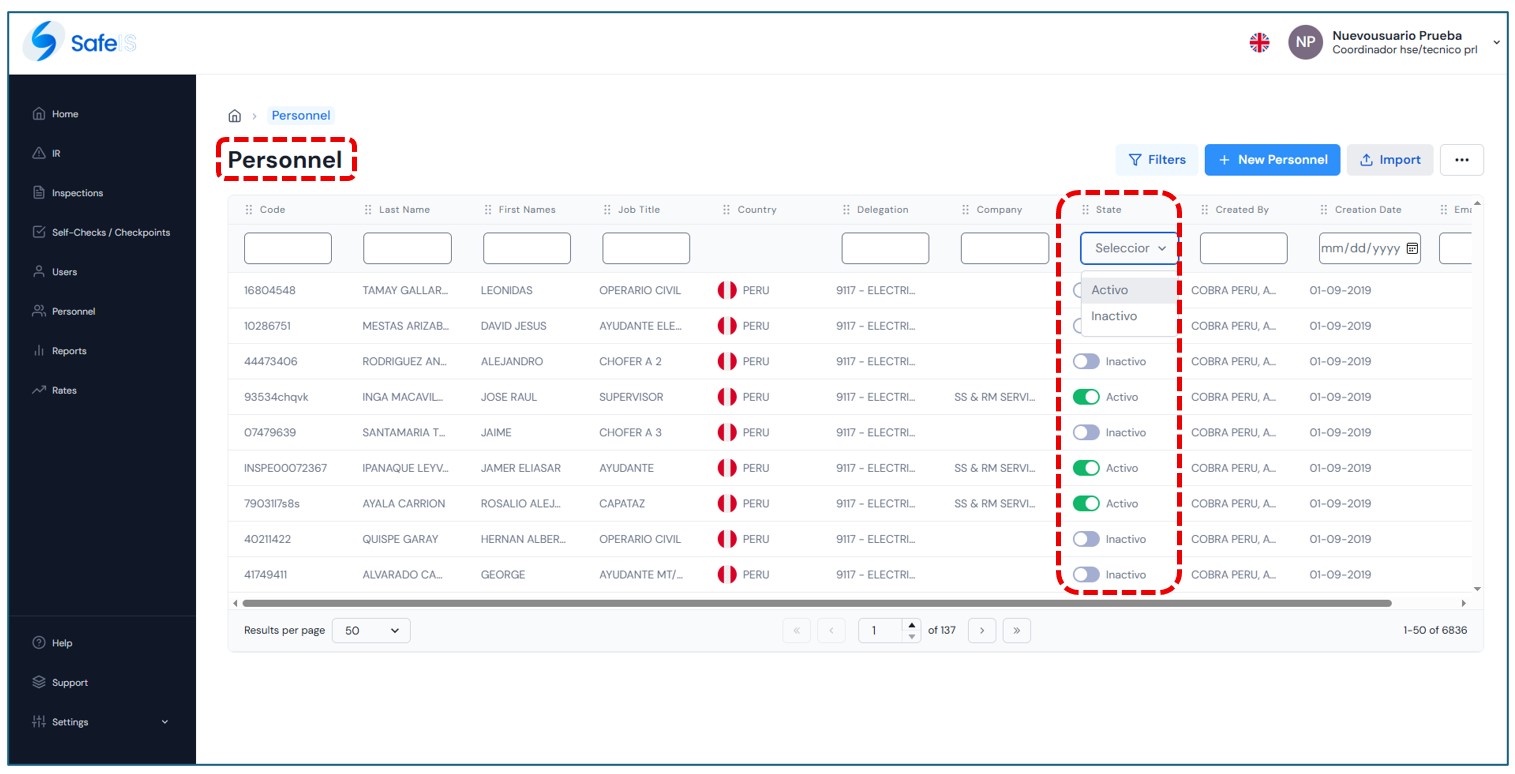
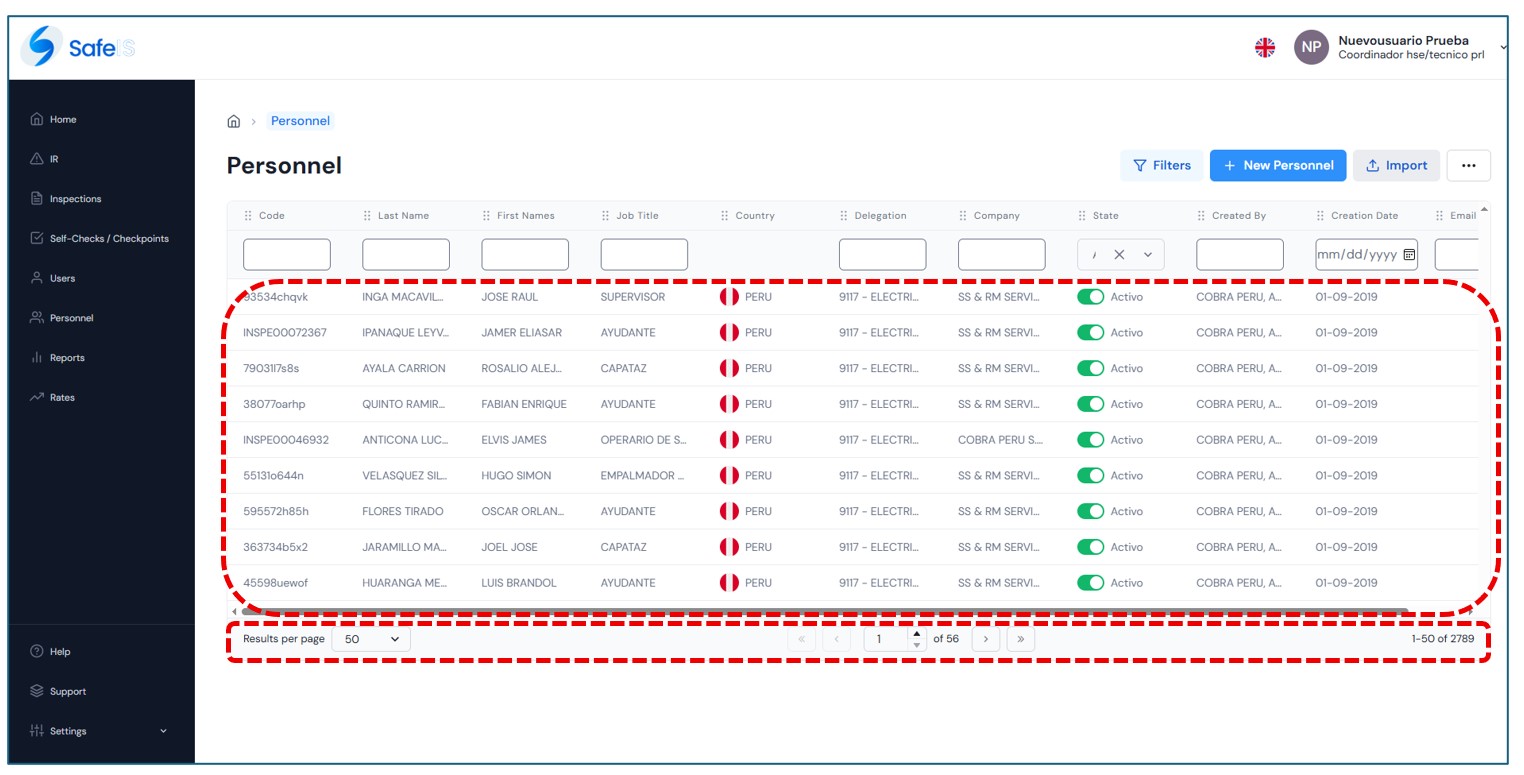
In the results panel, all records both active and inactive will be displayed by default according to the selected criteria. You may also use the following functionalities:
If you wish to clear the previously completed filter fields, click the “Reset Filter” button to start a new search.
II. Create Personnel
On the main page of the module, you will find the “Create Personnel”button. Click it to create a new record.
A window will open where you can begin the process. Complete the following fields:
Personnel Data
General Information
Once all fields are completed, click the “Save” button. The record will be stored and will appear in the results panel.
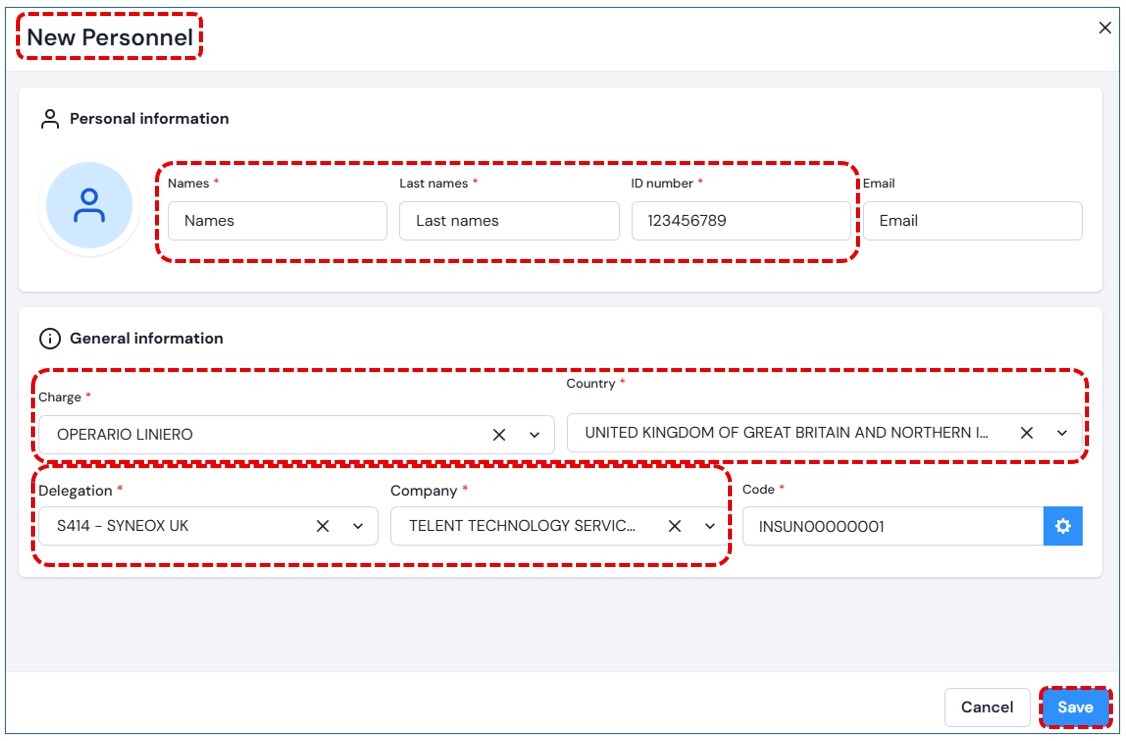
If the user does not wish to continue, they may click the “Cancel “button located at the bottom left of the window or close the modal by clicking the (x) icon. in the upper-right corner.
III.Edit Personnel
Within the results panel, clicking on the record you wish to edit will open a window on the left side displaying the existing personnel information.
Additional options: In the upper-right section, you will find two additional options:
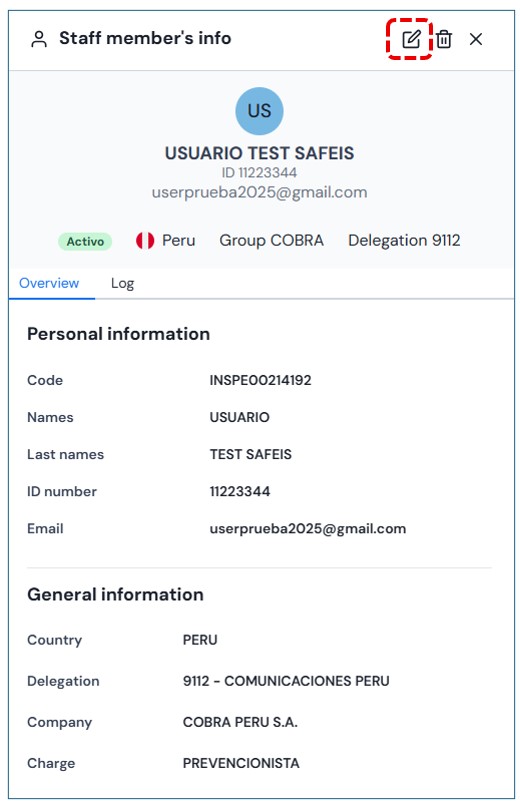
Click the edit icon to enable the editable fields. Make the necessary changes and then click the “Save Changes” button.
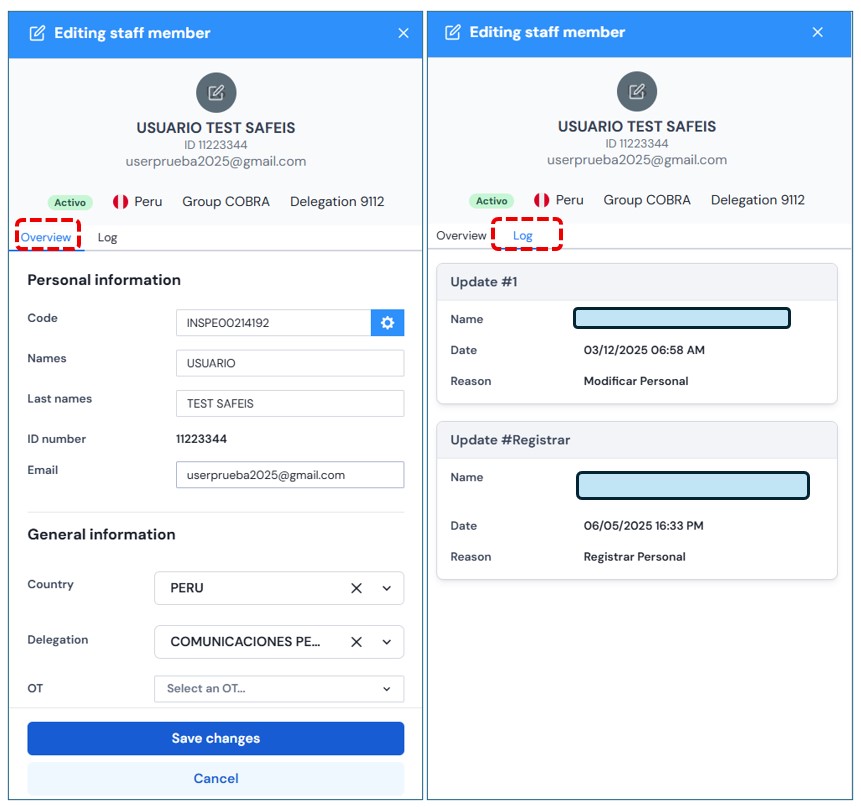
If the user does not wish to continue with the editing process, they may click “Cancel” or close the window by clicking the (x) icon.
IV. Delete Personnel
If the user wishes to delete a record and has the appropriate permissions, click the Delete button. A confirmation message will appear.

If the user wishes to proceed with the deletion, they must click “Yes, delete”, Otherwise, click “Cancel”.
V. Import Personnel
It is also possible to upload personnel records using the “Import” button.

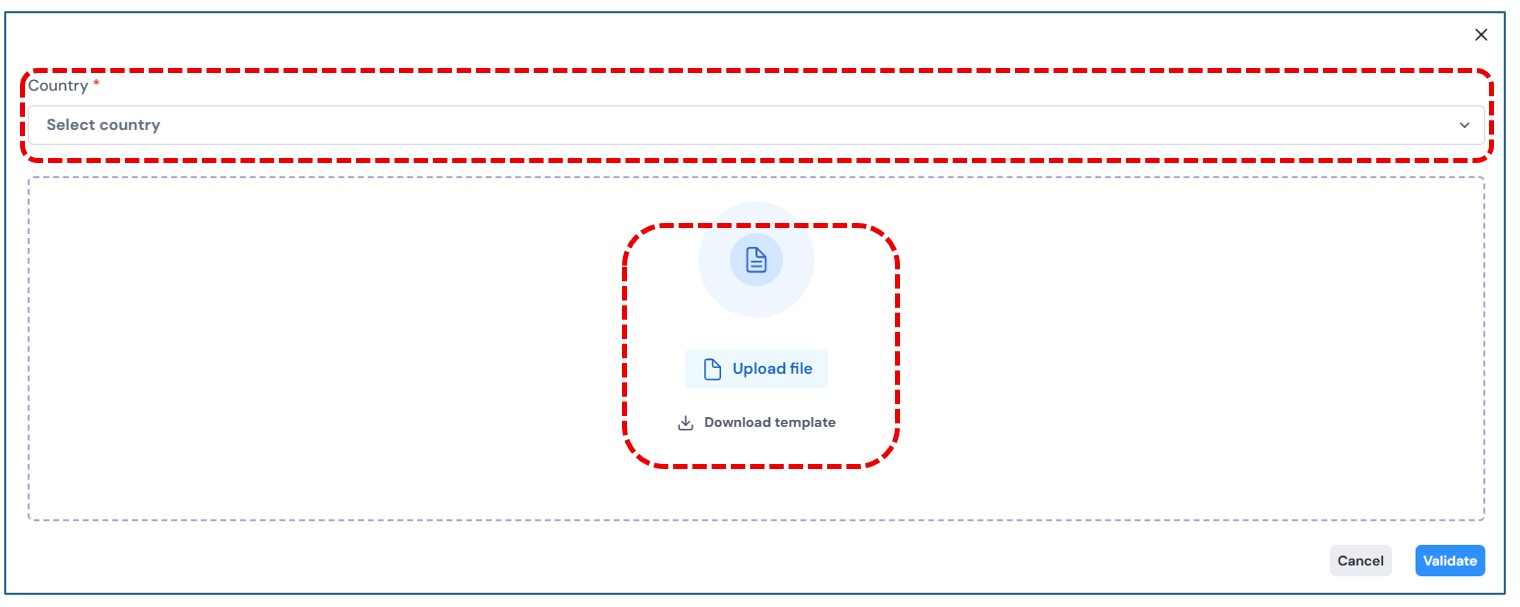
By entering the Group, Country and Format and Format fields, the corresponding template can be downloaded. Once the template has been filled out, upload the file to validate and save the information.