







Pre-Task Talk
First of all, keep in mind that if you are going to use this module, it is because you have a group assigned to your crew. To access this module on your mobile device, go to:
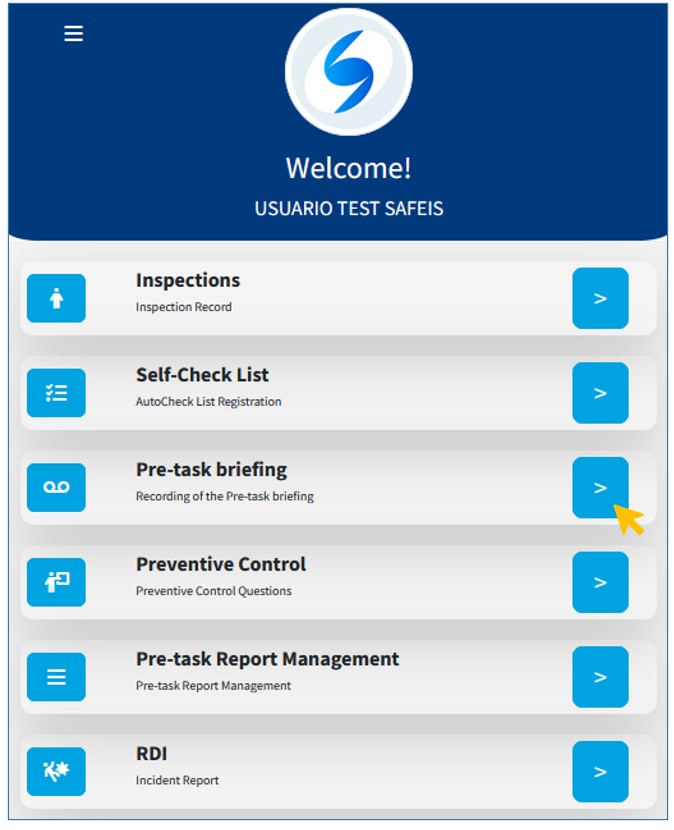
When entering the Pre-Task Talk option, remember that the system requires certain mandatory information, while others are optional. The mandatory fields are marked with a red asterisk symbol.
Upon entering, the system asks for the Work Order (OT) and Company information as mandatory fields in order to load the remaining data:
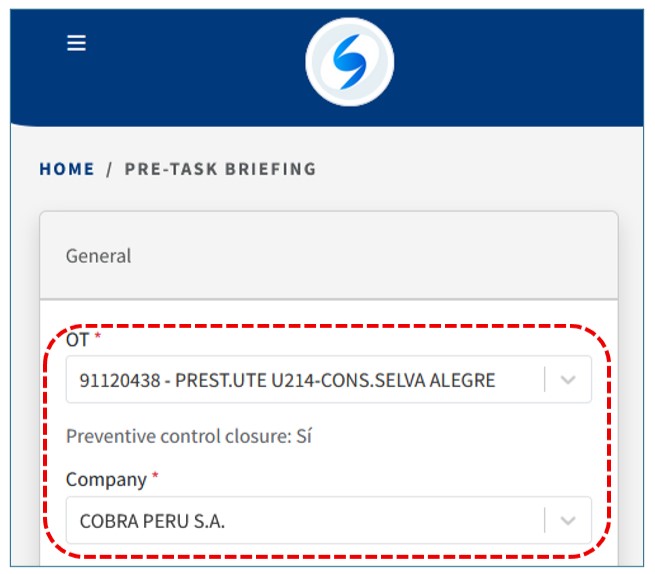
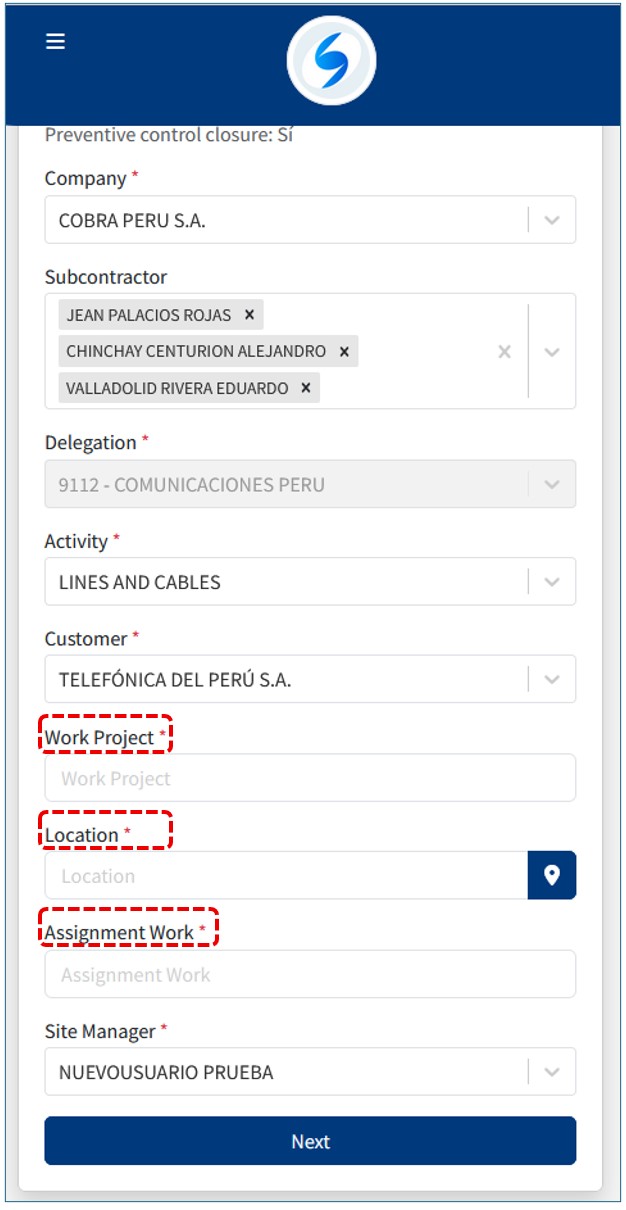
Once this data is entered, Delegation, Activity, and Client will be displayed by default, but they can also be modified:

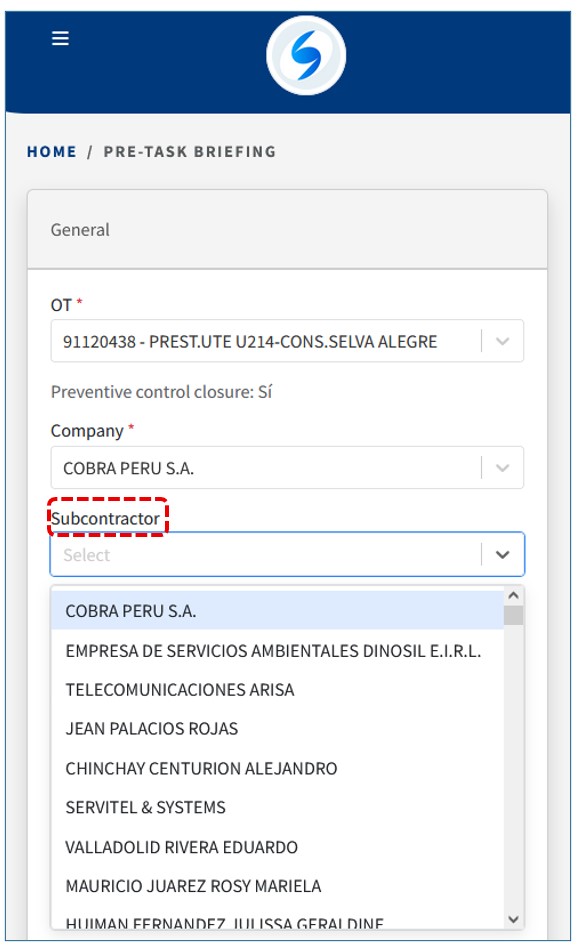
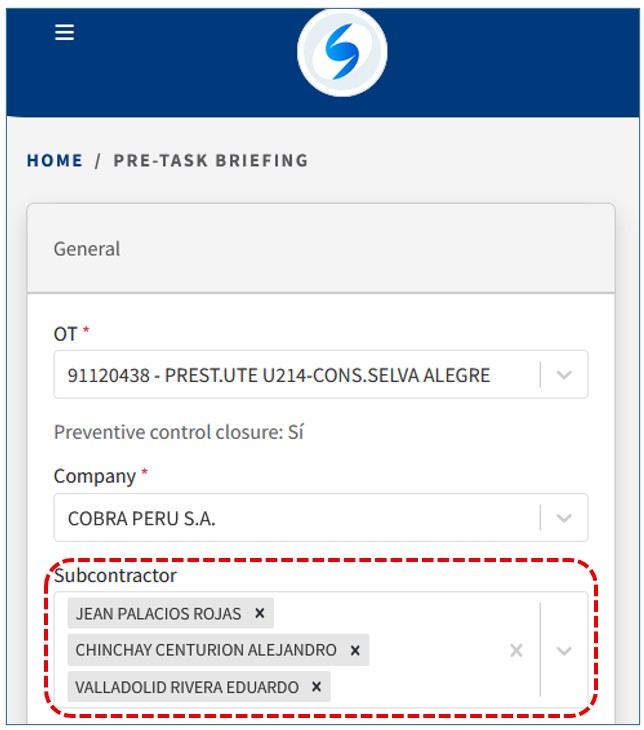
Additionally, the system requests Subcontractor information, which is not mandatory but often necessary. Keep in mind that several subcontractors can be added:
Thus, we can have one or more subcontractor companies: una o más empresas de Subcontrata(s):
You must also enter the Project Name and the Task to Be Performed:
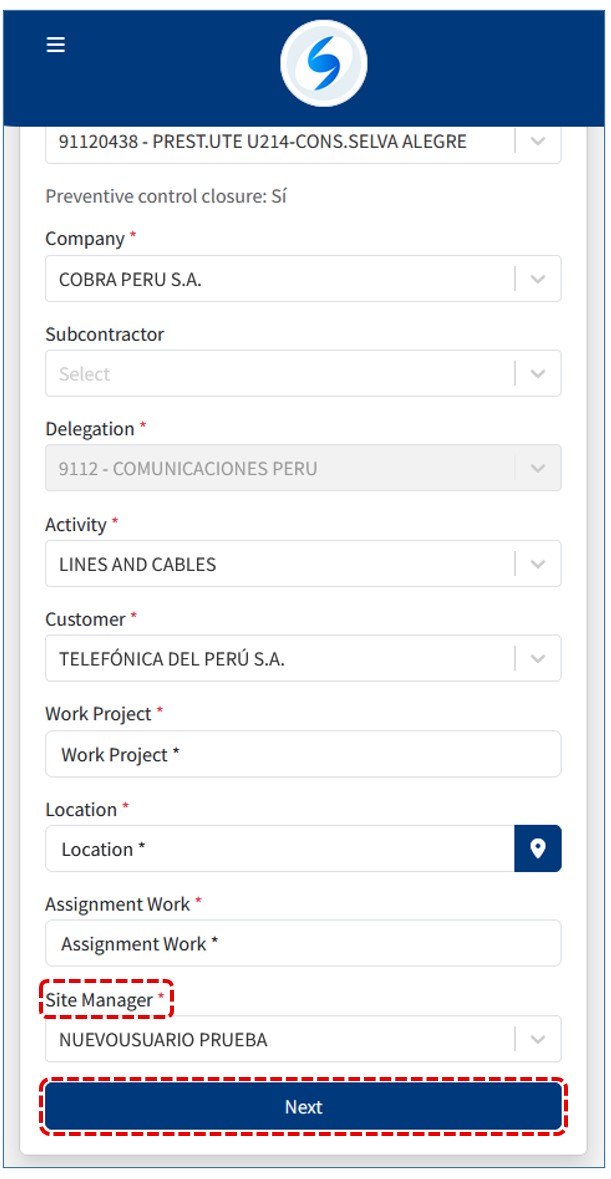
And finally, the Project Manager’s Name before pressing the Next button:
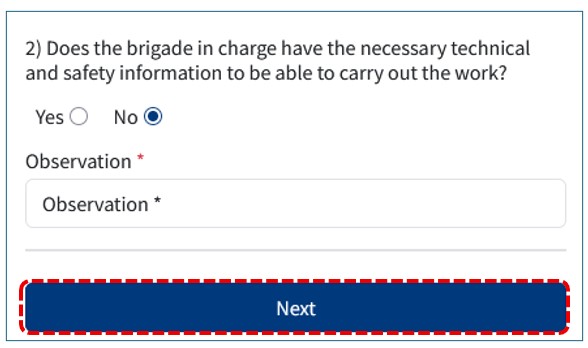
Next, you must complete three parts of the Pre-Task Talk, starting with the questions related to Human Resources:
The first question is to confirm whether you have a work crew or not. If you are working alone, use the Checklist option; otherwise, begin adding personnel:
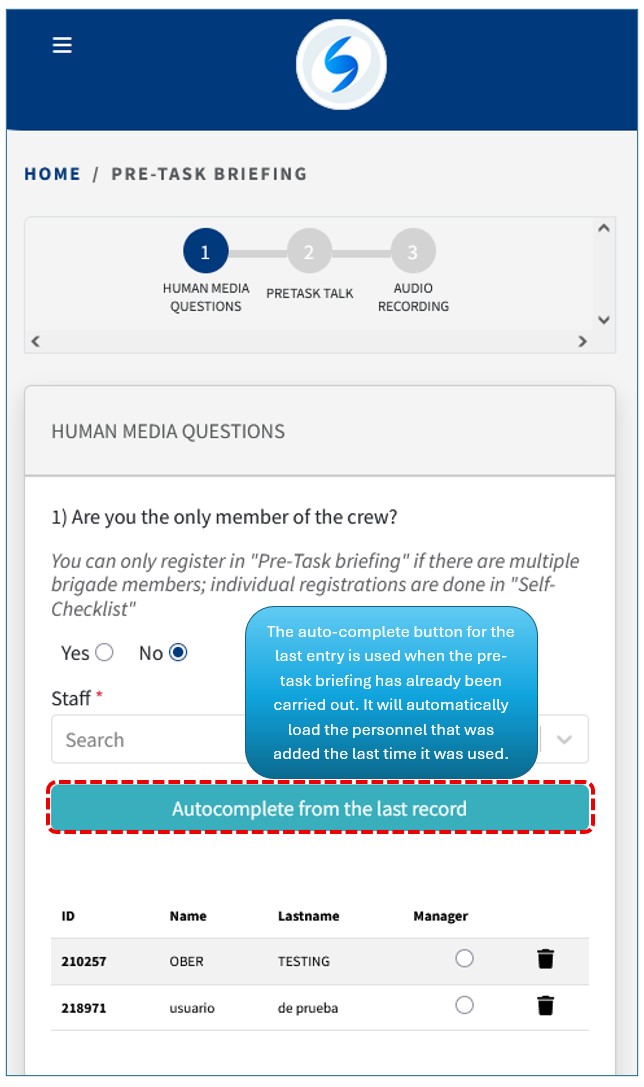
From the personnel added, you must mark one of them as the Work Leader:
In the next section, we have the actual Pre-Task Talk questions. The first question concerns the Work Planning Meeting Record for the task to be performed — answer whether you have it. If you select NO or N/A, you must enter an observation about it:

In Question 2, answer based on the task to be performed. There is an OTHERS field to enter a risk not listed, in which case write it in the blank space:
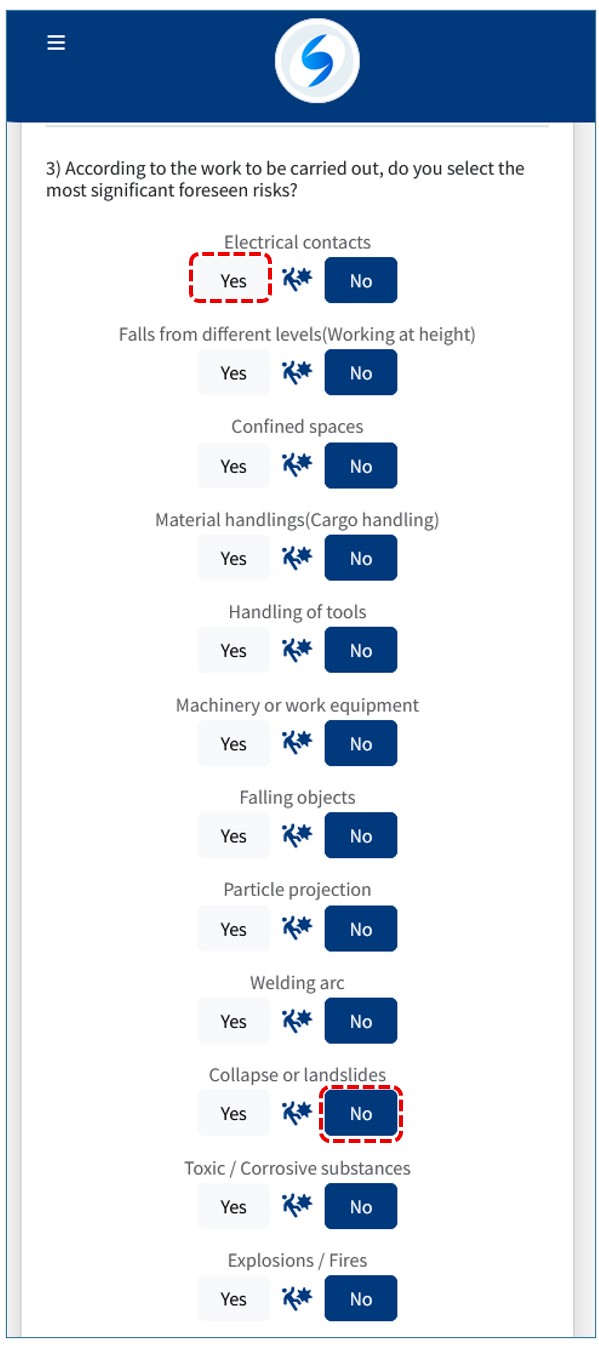
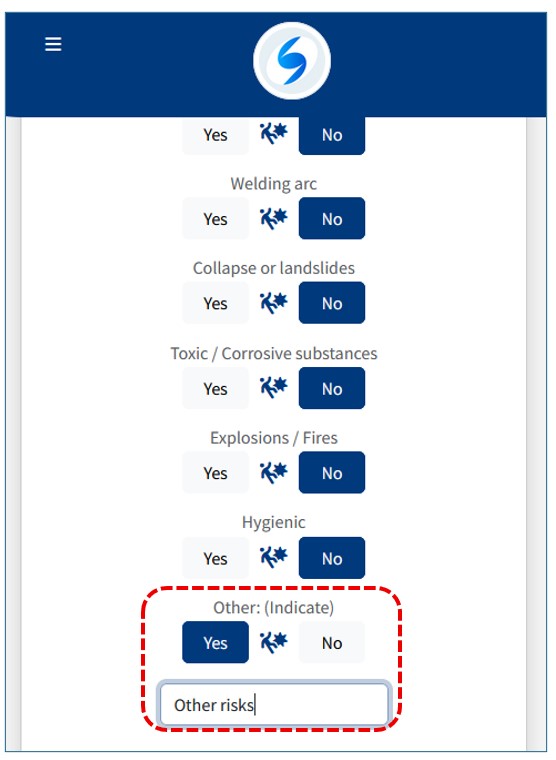
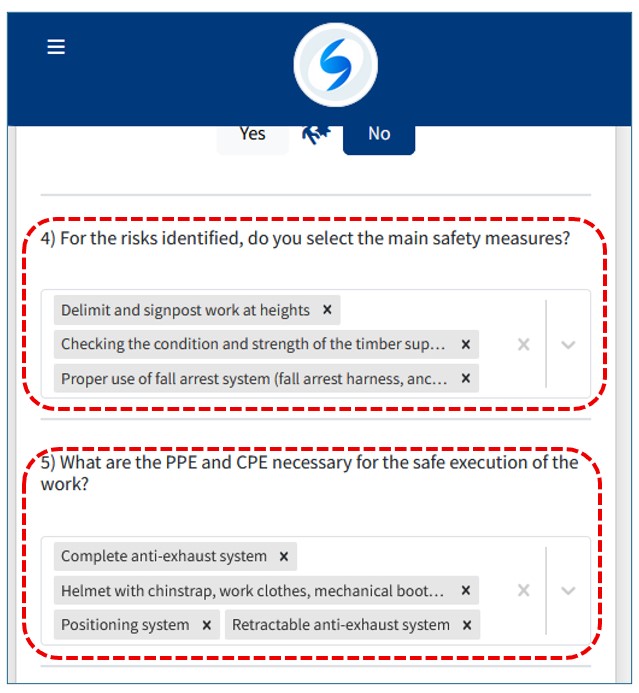
In Questions 3 and 4, enter the preventive measures and the necessary PPEs (CPEs) for the tasks you are going to perform and that were selected in Question 2: 3 y 4 vamos a ingresar las medidas preventivas y los EPIs (EPCs) necesarios para los trabajos que vamos a realizar y que marcamos en la pregunta 2:
For Question 5, if you select YES, a list will appear with the names of the personnel entered in the first Human Resources section, and you must select one of them as the person to whom the preventive resources will be assigned:
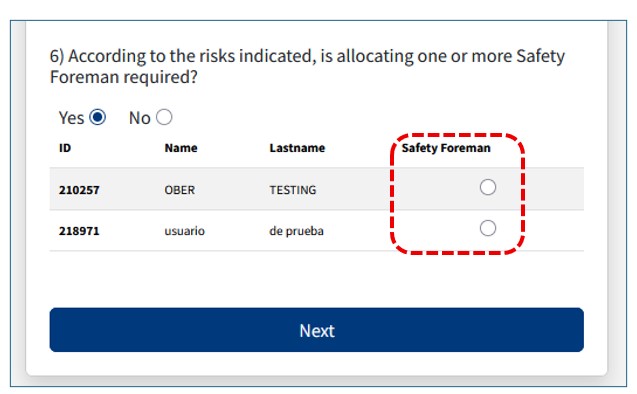
If you select NO, simply continue to the next section:

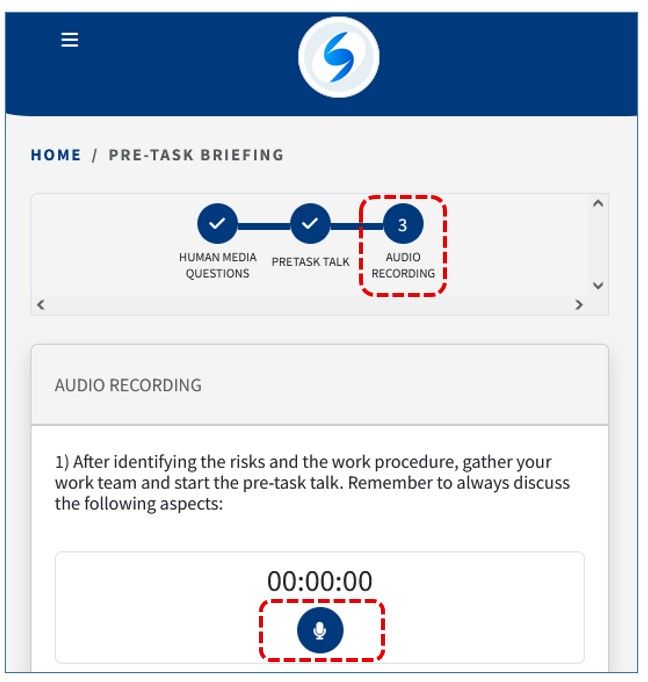
Finally, go to the third section, where you can record the Pre-Task Talk audio. Simply tap the microphone icon to start recording:
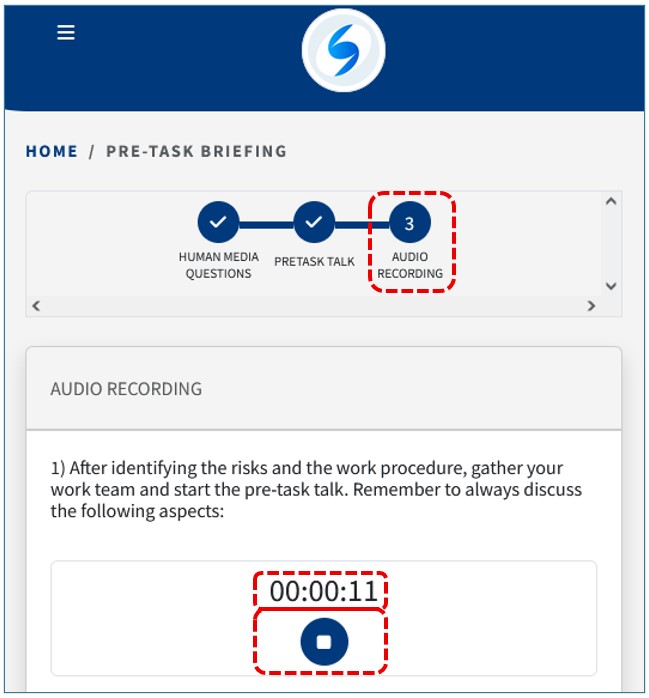
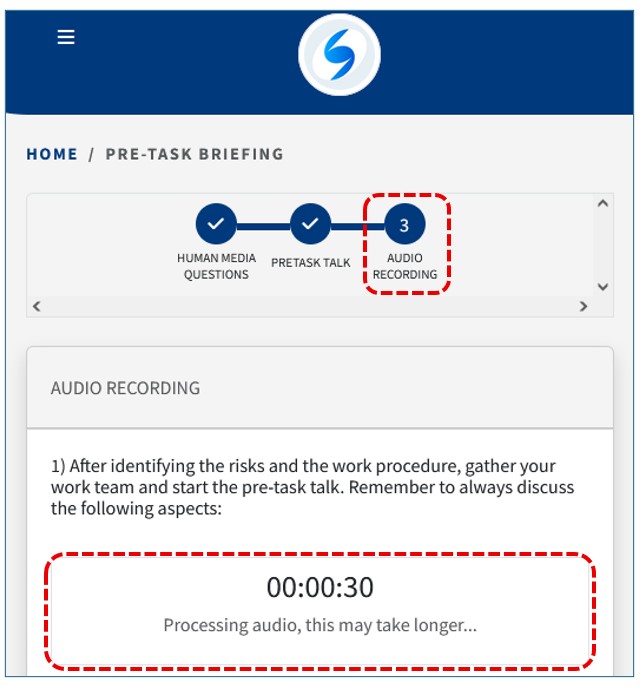
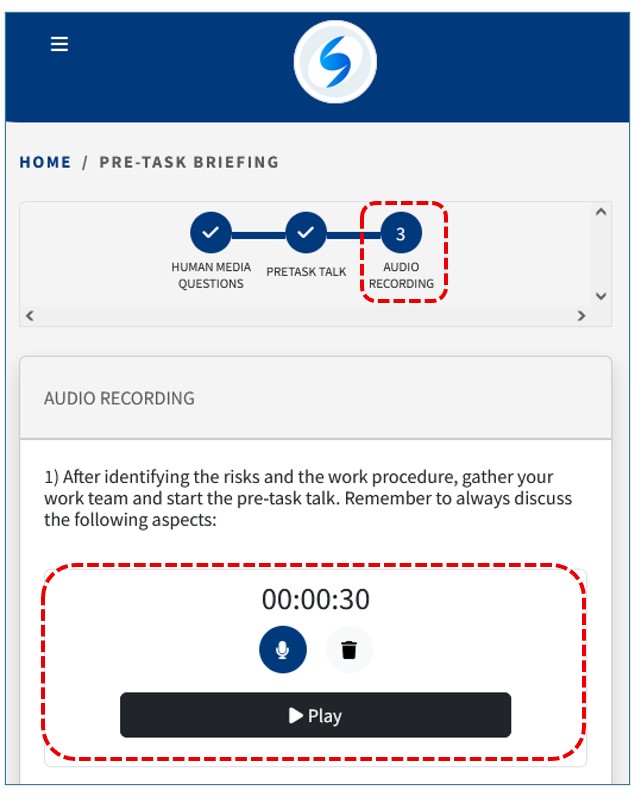
After recording the audio, you have the option to play it back or delete it:
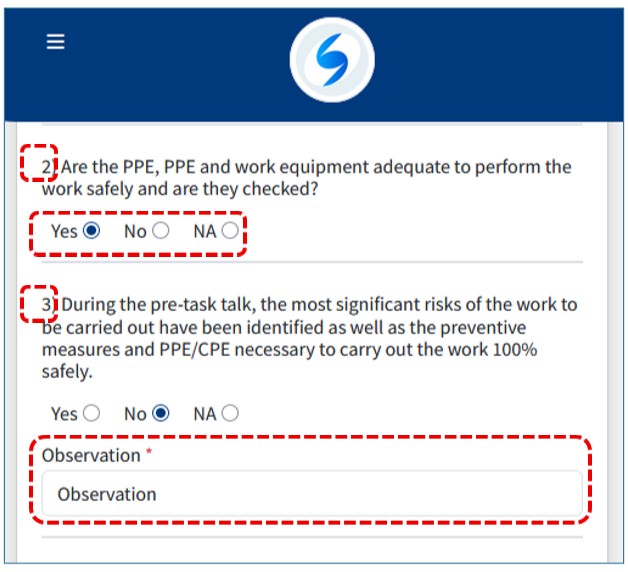
Then, answer Questions 2 and 3, related to PPEs (CPEs) and the most significant risks:
Lastly, enter your SIGNATURE by tapping on your mobile screen:
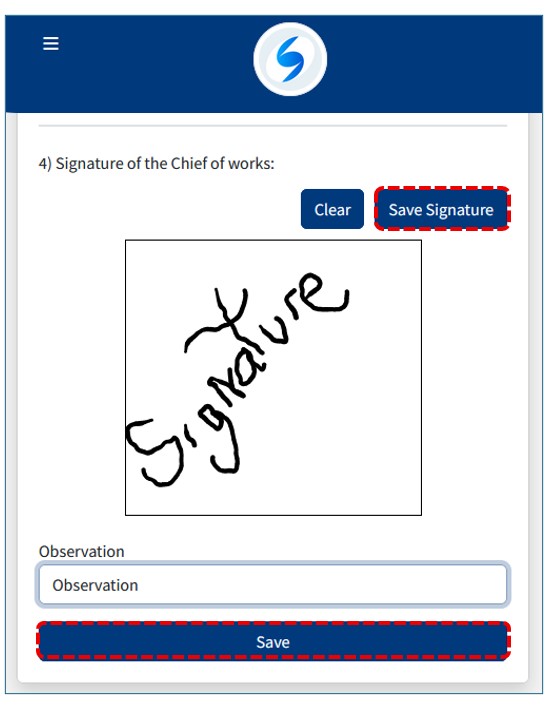
You must save the signature; if there is an error, you can clear it. Finally, if needed, enter an observation and click the SAVE button to record the entire Pre-Task Talk process.
Once recorded, the entry will appear in a list with its details in the Checklist Management section:
