







SAFE IS App – Offline Mode
The SAFE IS app application automatically switches At that moment and canThis happens when the phone has a weak signal or the internet connection drops. The user can also manually activate can within the application.
In some locations where Inspections, Safety Talks, Self-Checks, or RDIs are performed, the signal may be very weak or nonexistent. In those cases, SAFE IS switches to can, or the user can activate it manually to record the information.
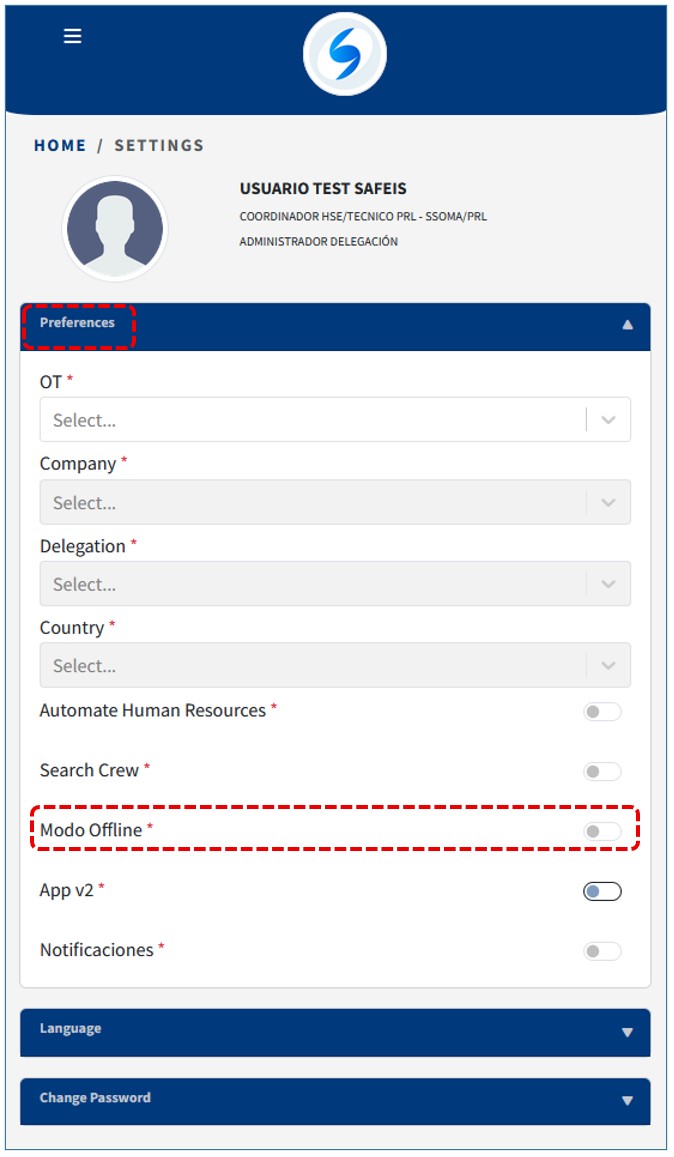
When the phone is in can, everything the user records is stored within the application. Once the phone regains a stable signal, SAFE IS automatically switches back to At that moment as long as offline can was not activated manually. can mode was activated manually, the user must switch it back. At that moment, the application automatically sends the stored information to the WEB SAFEIS.
After this, we proceed with the indicated actions.
Nro.1
As the first step, the following must be fulfilled: You must be connected to the internet and perform the following actions:
YOU MUST HAVE INTERNET CONNECTIVITY TO ACCESS THE SAFE IS APPLICATION WITH YOUR CREDENTIALS.
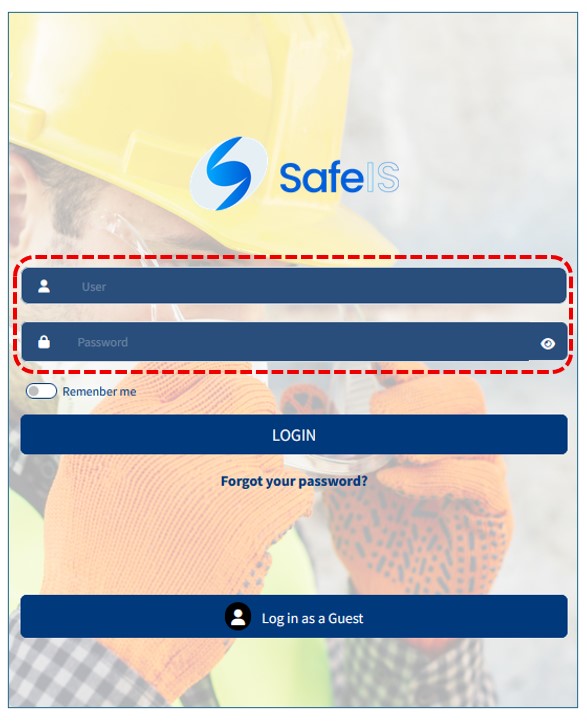
THE USER MUST APPLY THE “REFRESH DATA” AND “REFRESH APP” FUNCTIONS.
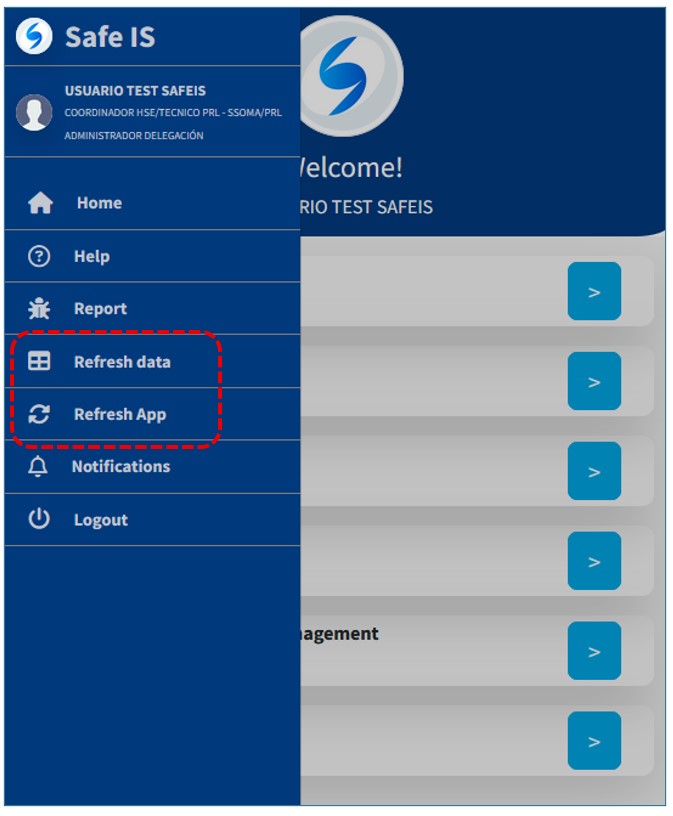
- These actions must be performed in a place with good internet connectivity and before going out to perform the registrations.
- This ensures that the SAFE IS application synchronizes with the latest changes and updates made on the SAFEIS WEB.
Nro. 2
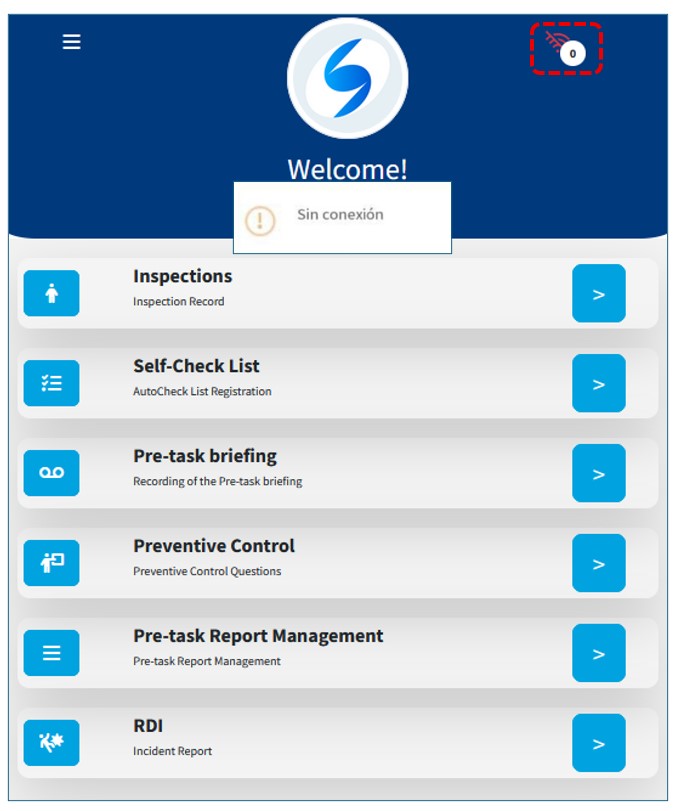
When we arrive at the place where the Inspection, Pre-task Talk, or Self-Checklist will be performed and the signal is weak,
the application will automatically switch to in offline mode.and display the following icon.

Additionally, a “No connection” message will appear along with the offline mode symbol, accompanied in offline mode.that will temporarily change to 1, indicating that a record 1was created in offline mode.
Nro. 3
You may start recording the Inspection, Pre-task Talk, or Self-Checklist as usual.
In this example, an inspection record is being created..
Here you can verify that the SAFE IS app application is in offline in offline mode.internet connectivity.
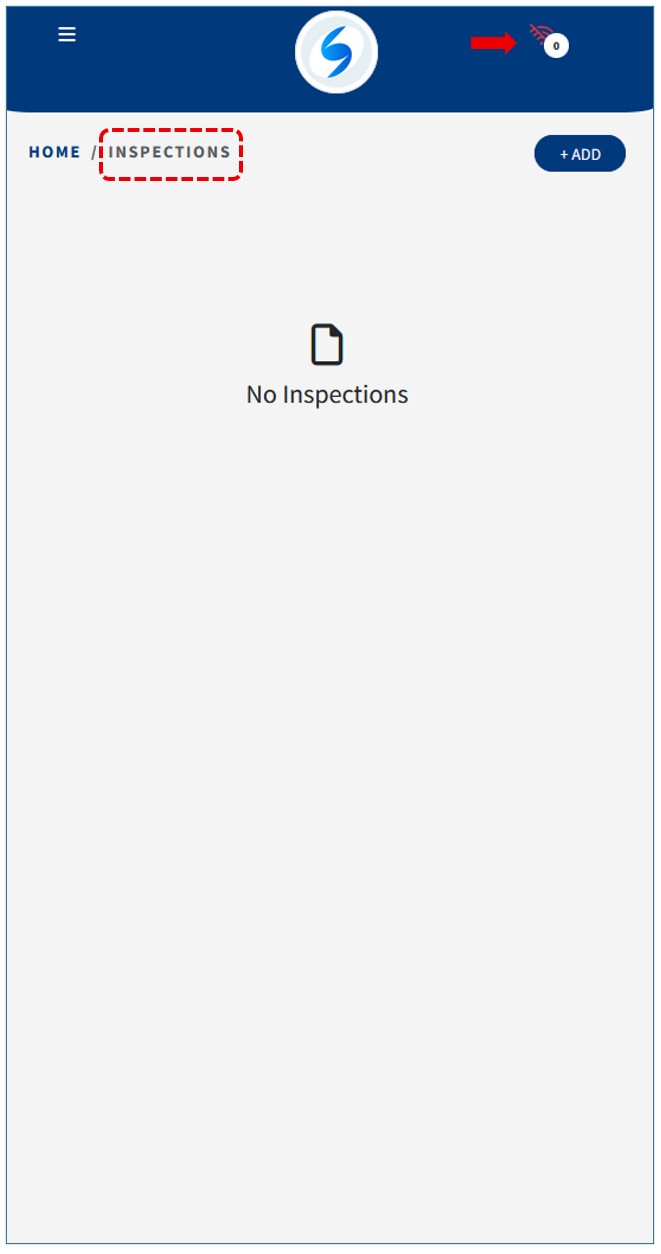
Likewise, Self-Checklists, Pre-task Talks, and RDIs can also be recorded in offline mode.
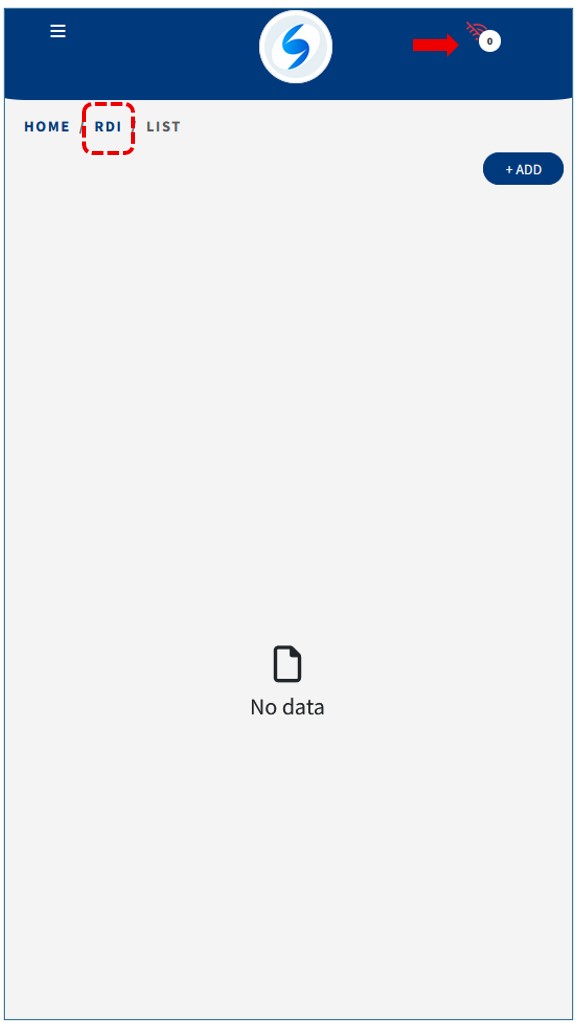
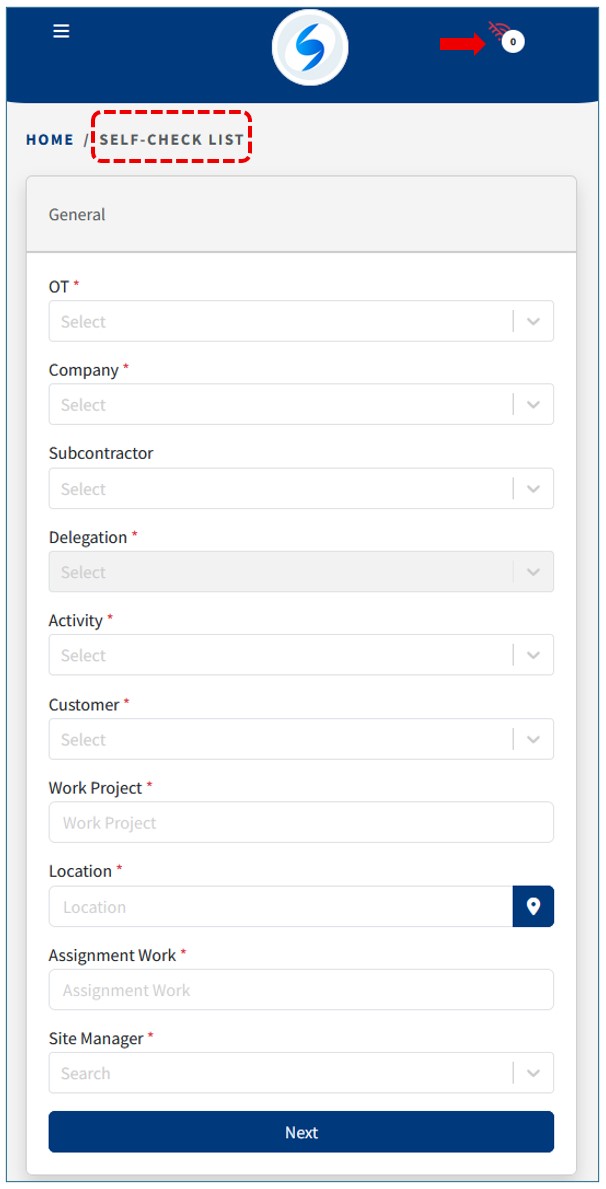
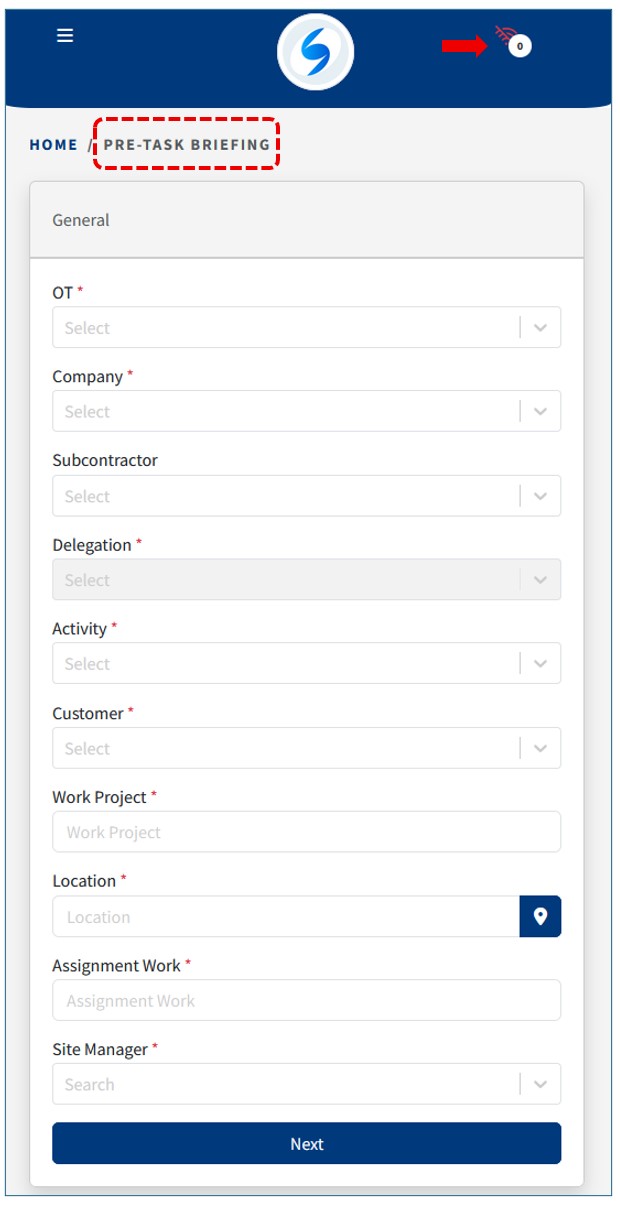
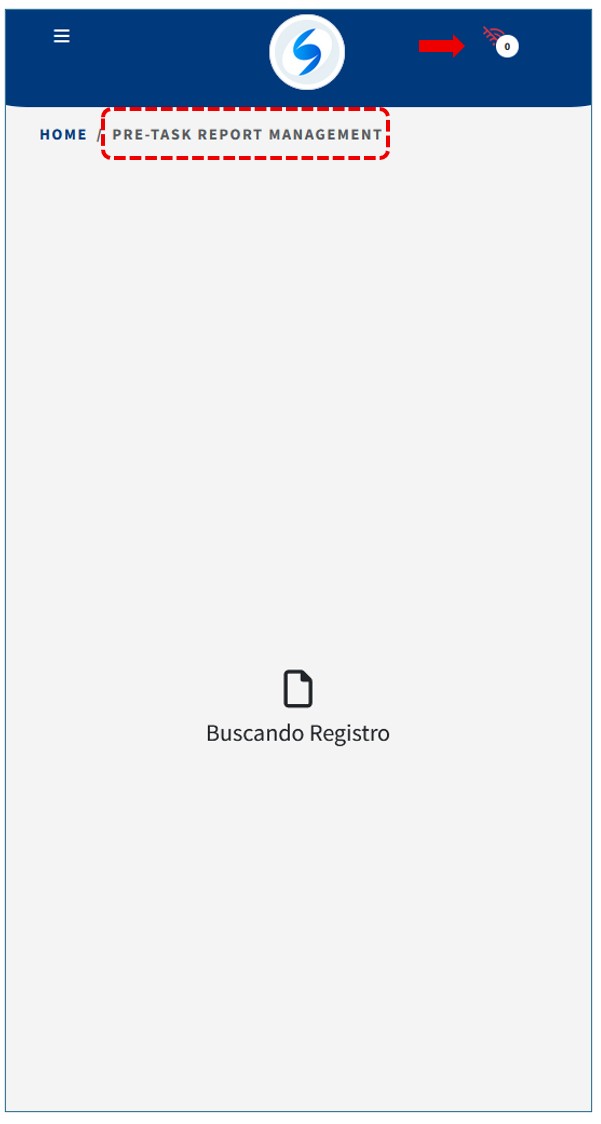
After completing the record, it can be saved without any issues.
Some records will have an ID with value 0 and others will not, and they will also appear in red, which is themain indicator that they were created in offline mode..
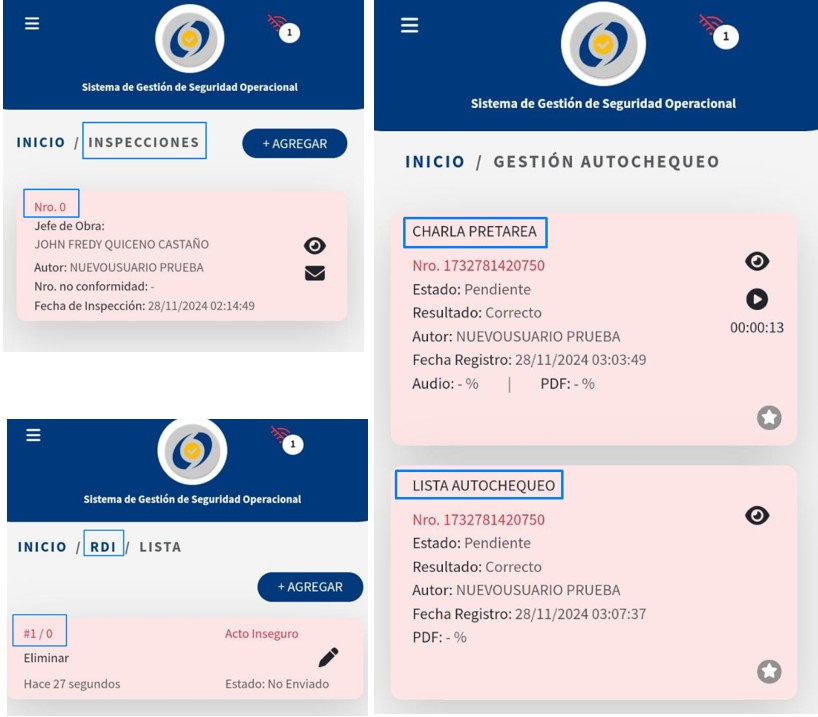
Nro. 4
Now that the record is stored locally SAFE IS app we
must go to a place with good signal or WIFI.
The SAFE IS app will detect the good connectivity
and display the message “Connection established.”.
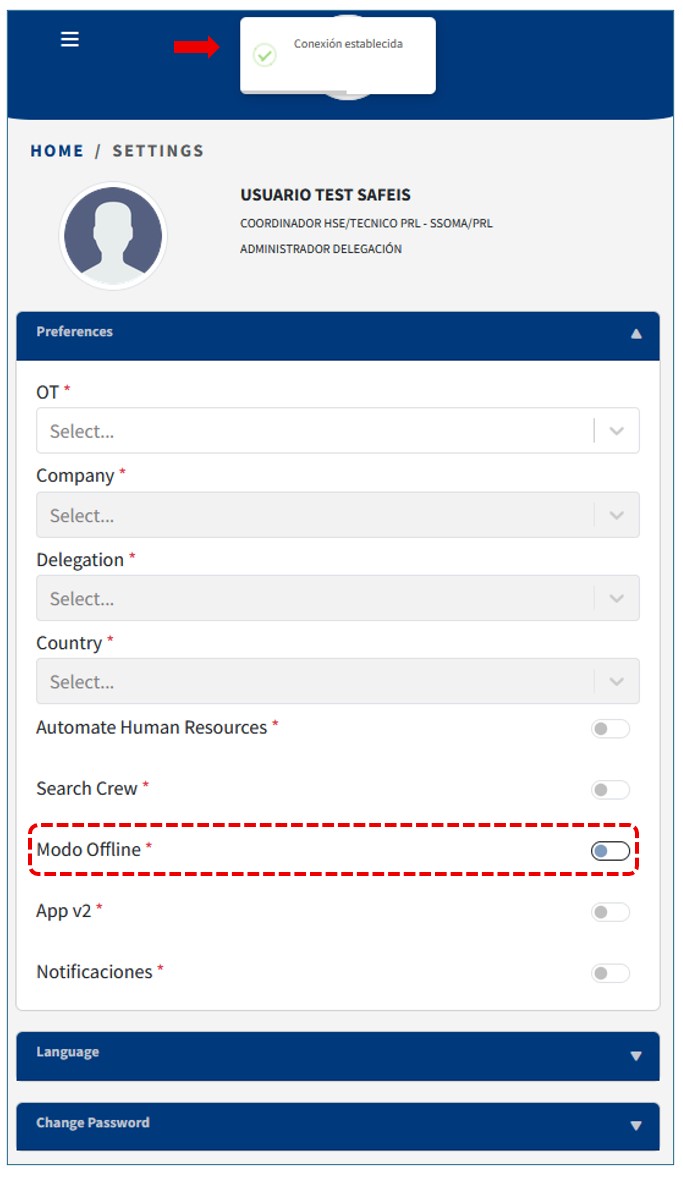
Nro. 5
We can now view the records synchronized with the SAFEIS WEBas the registration codes were auto-generated and the color changed from pink to white,indicating the process was completed successfully.
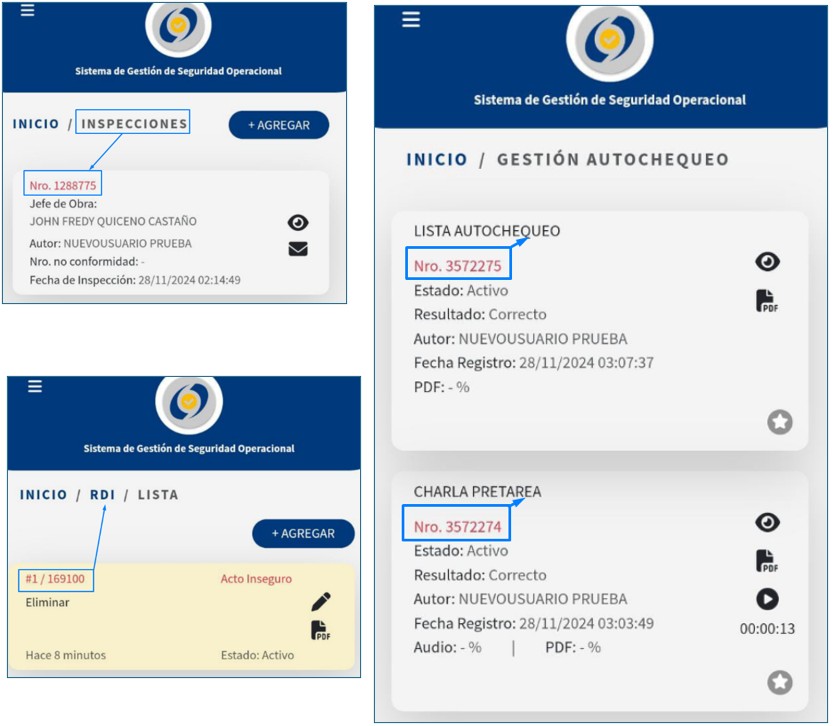
To verify that our records were saved correctly, we must check them on the SAFEIS WEB and view the auto-generated PDFs..