I. Autocheck / CP Filter
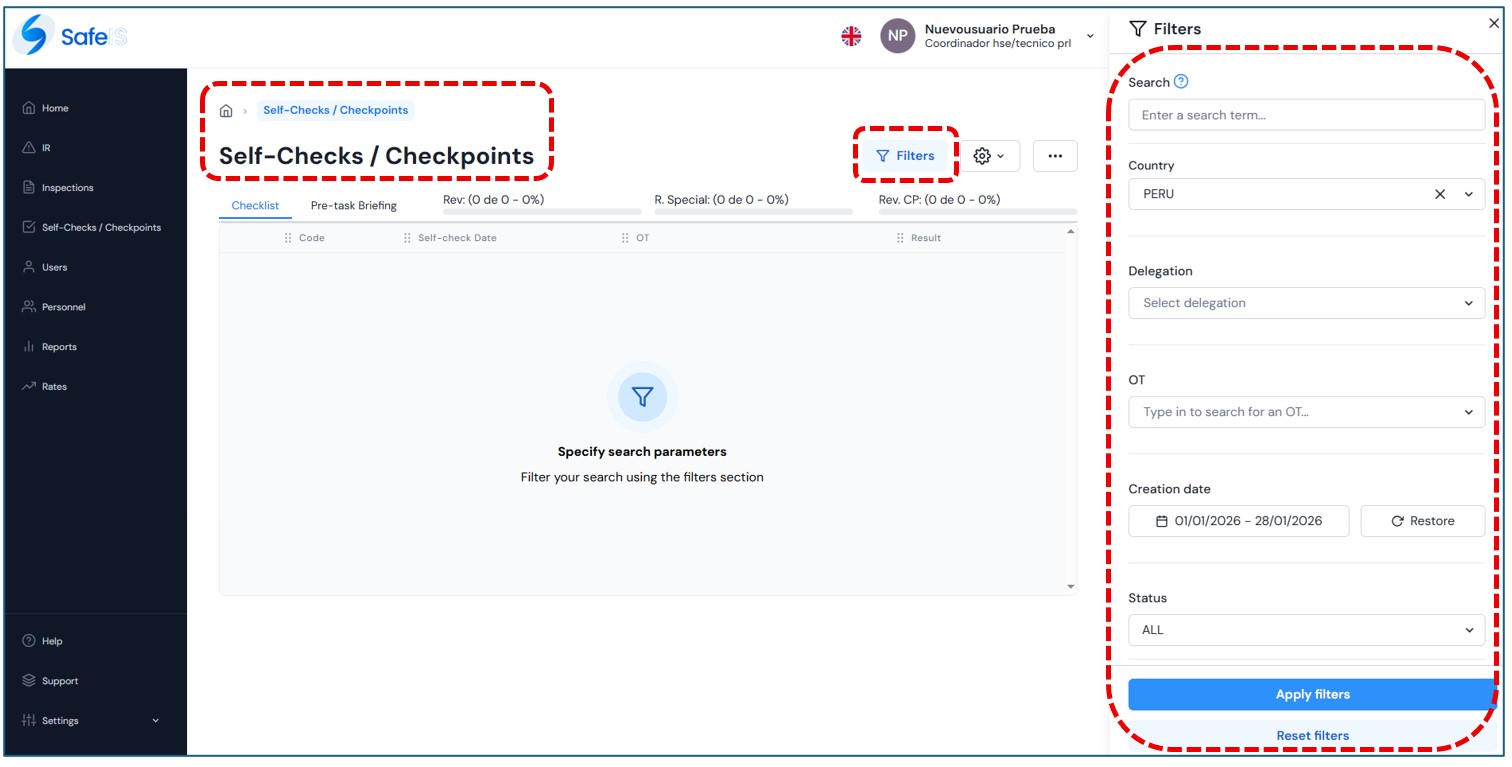
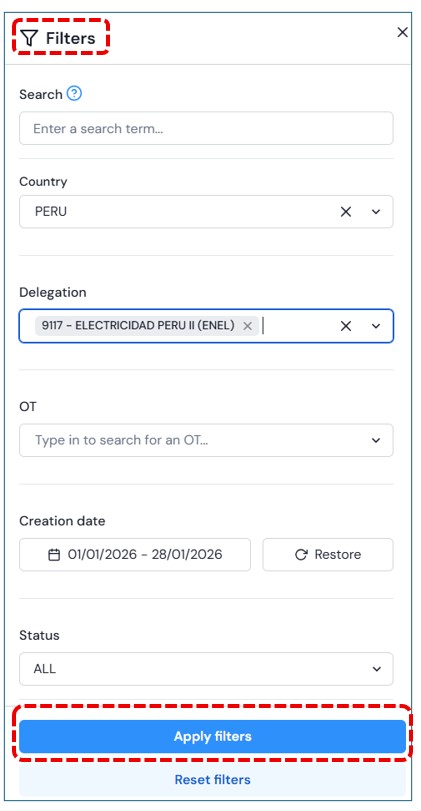
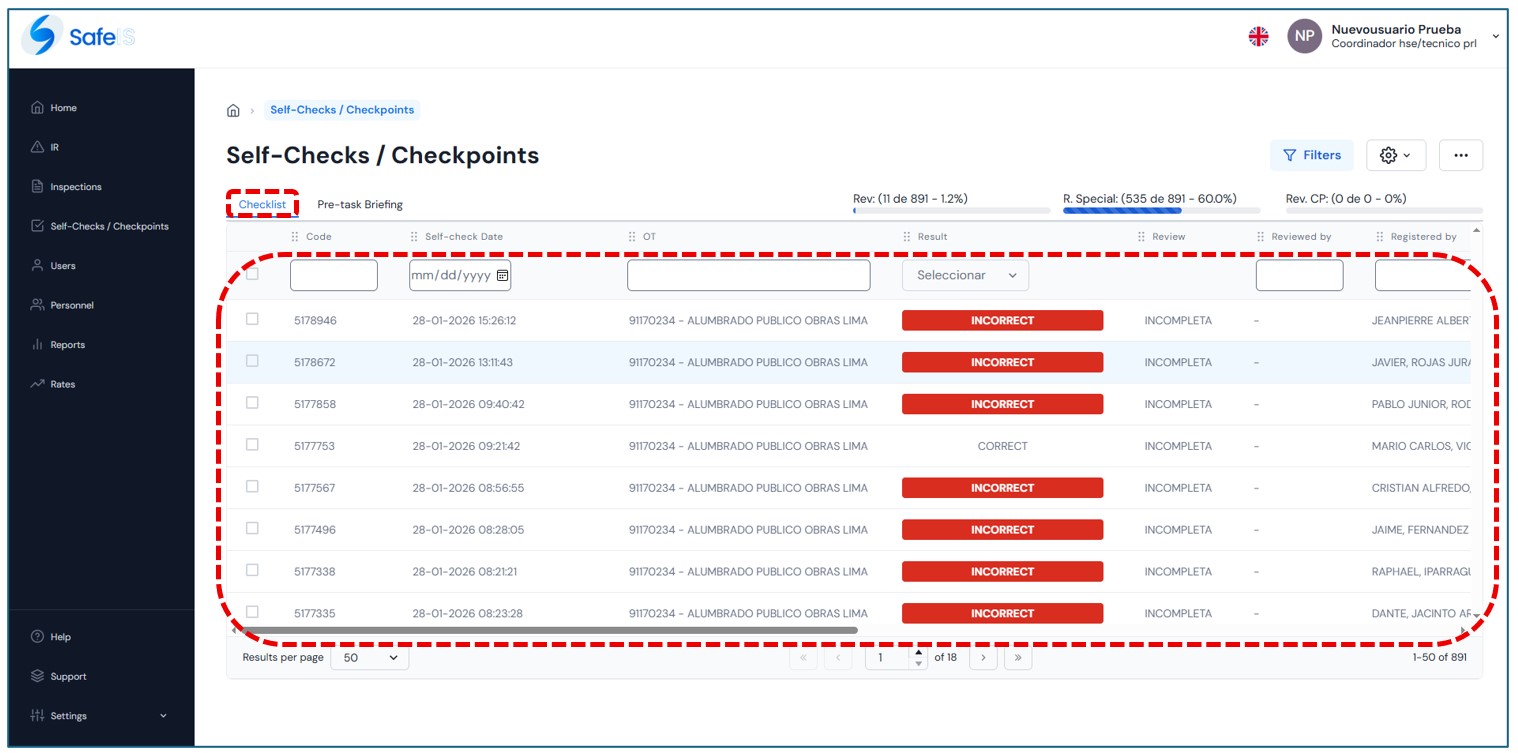
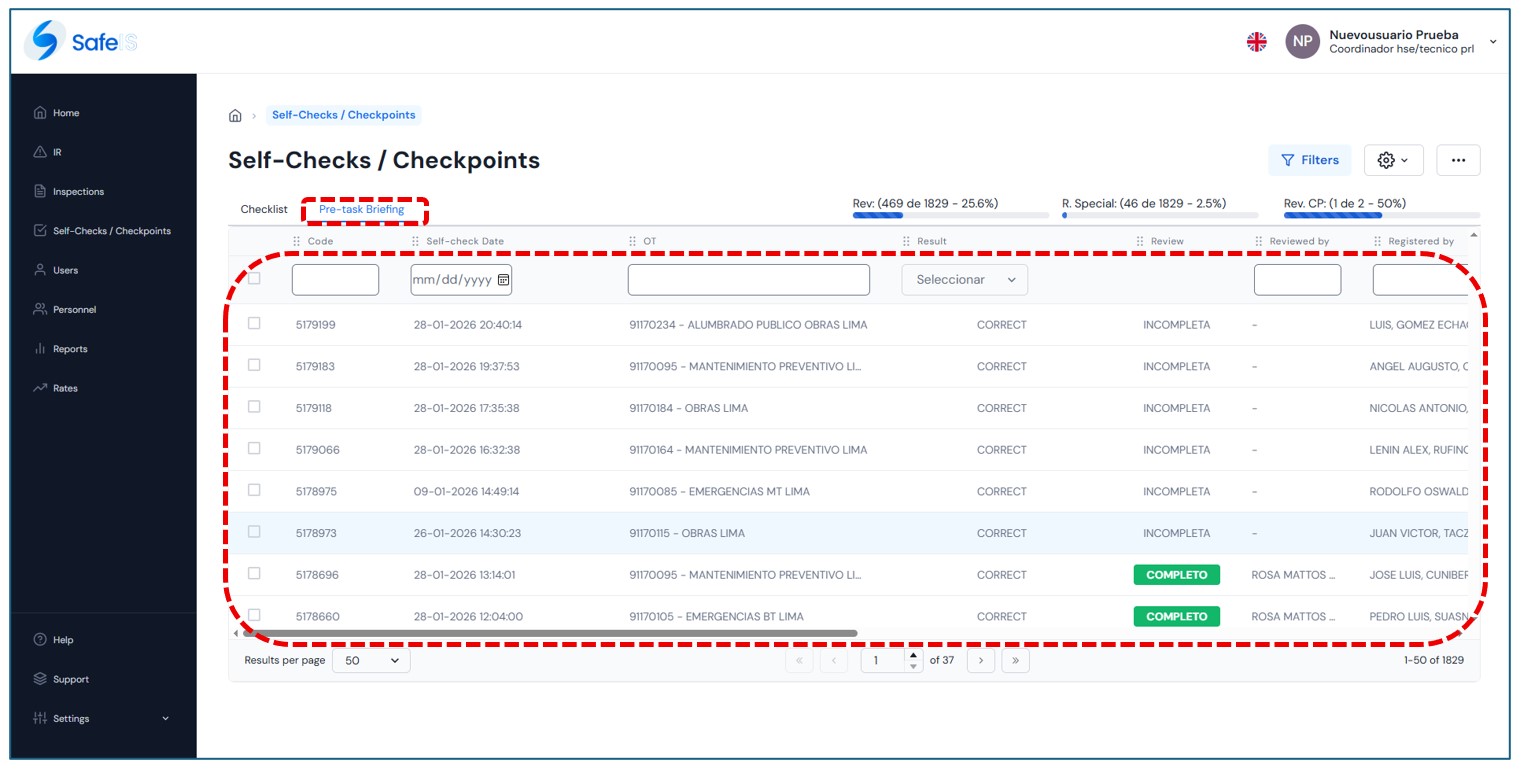
Upon entering, the main page will be displayed with the filter open to perform searches, using by default the country and user profile filters.
The following filters are available:
- Search
- Country
- Delegation
- OT
- Creation Date (date range)
- Rating
In the following options, ALL are checked by default:
- Status
- Result
- Review
Once the filters have been applied and the data found, they will be displayed in the results table.
II.Configuration
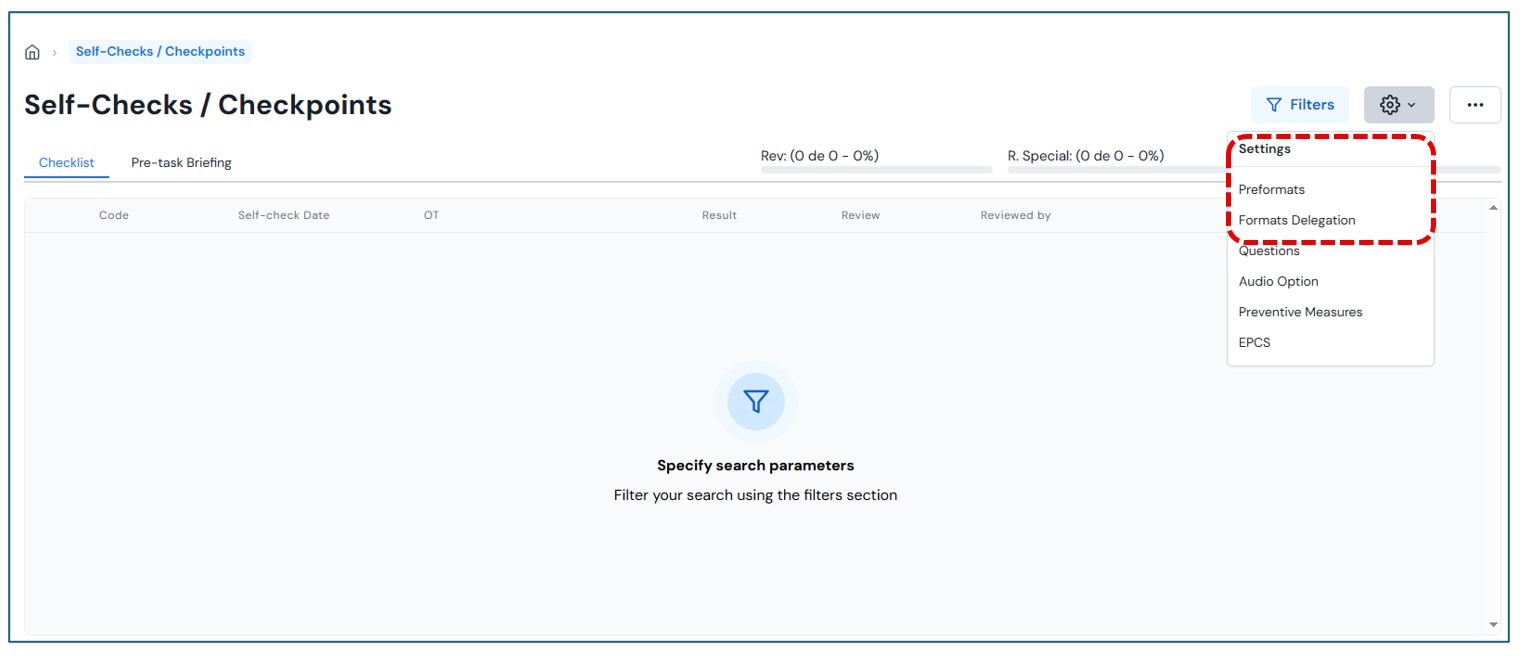
Select the configuration button and the following options will be displayed:
- Preformats
- Delegation format
- Risk types
III. Preformats Configuration
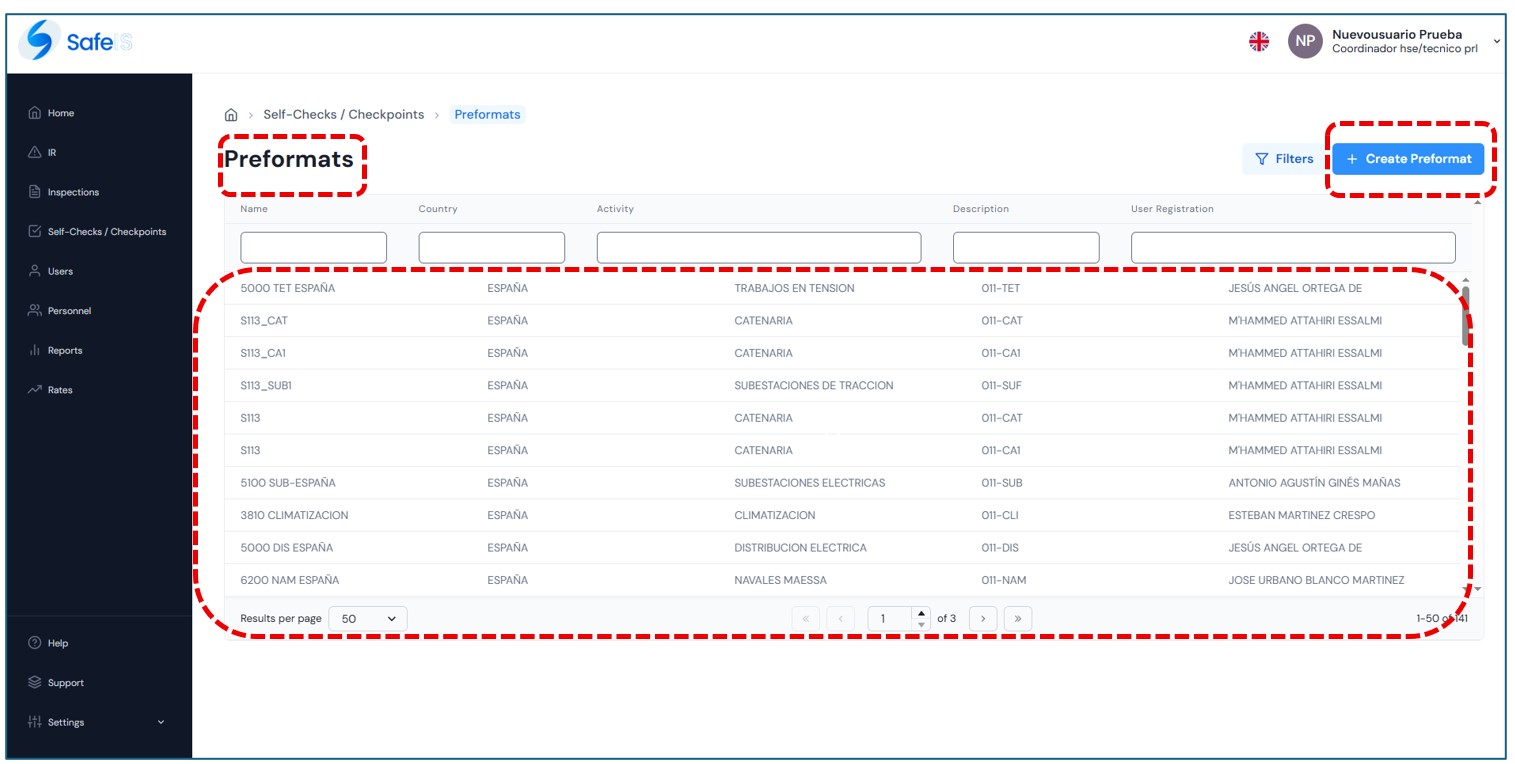
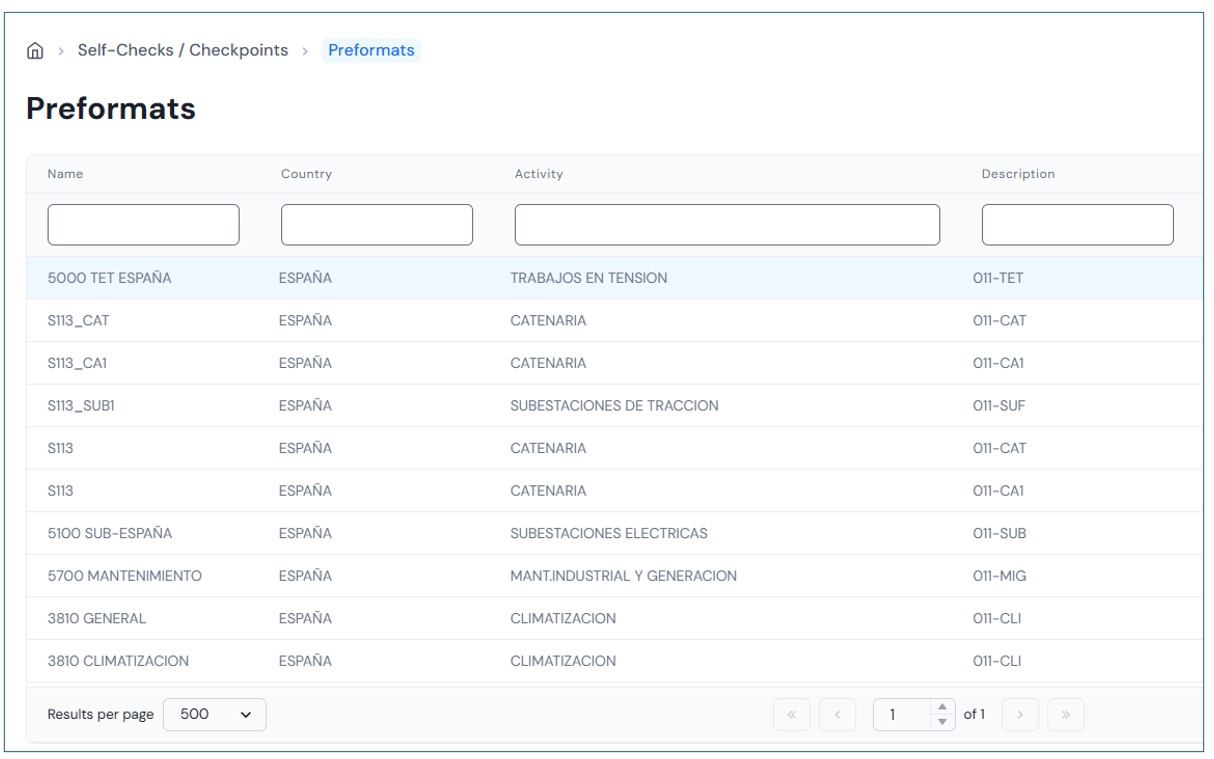
Upon entering this section, the home page will be displayed with the filter open to perform the corresponding search.
To obtain information, complete the following fields:
- Search
- Country
- Activity
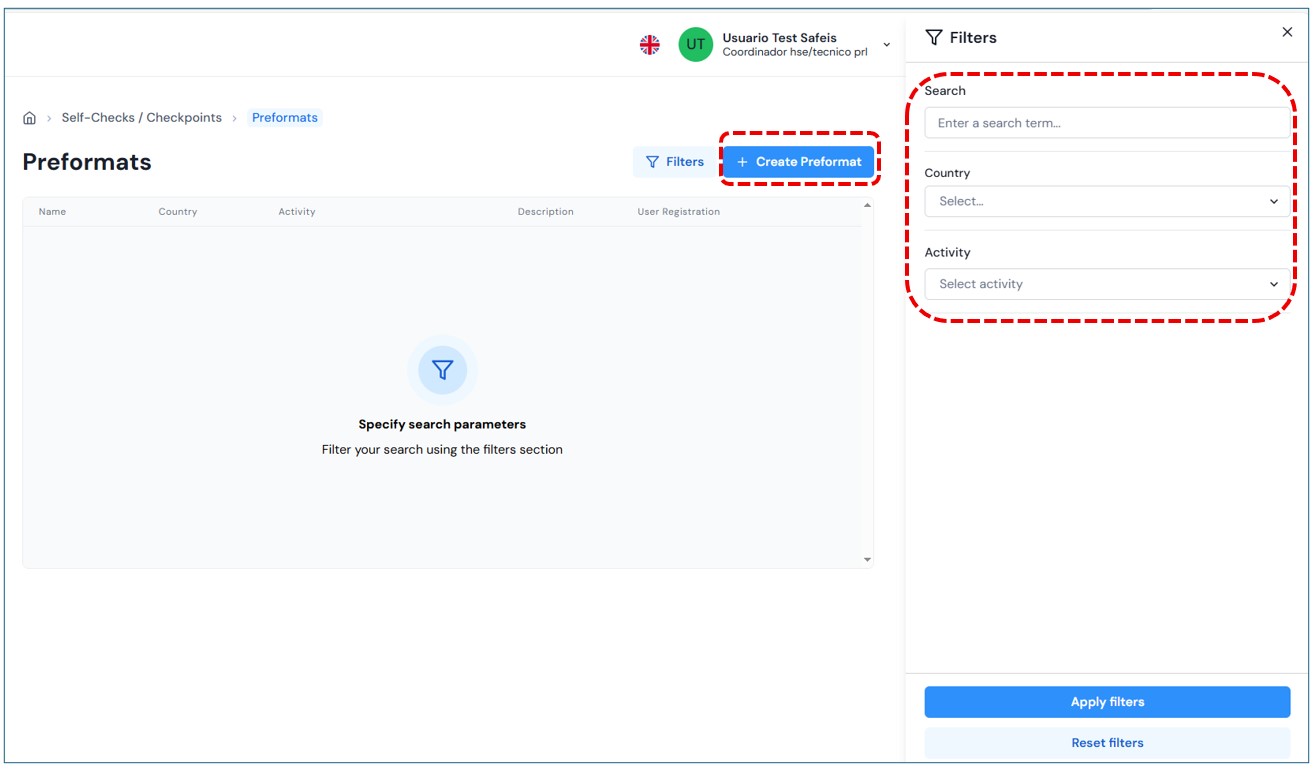
Once the filters have been applied and the data found, they will be shown in the results panel.
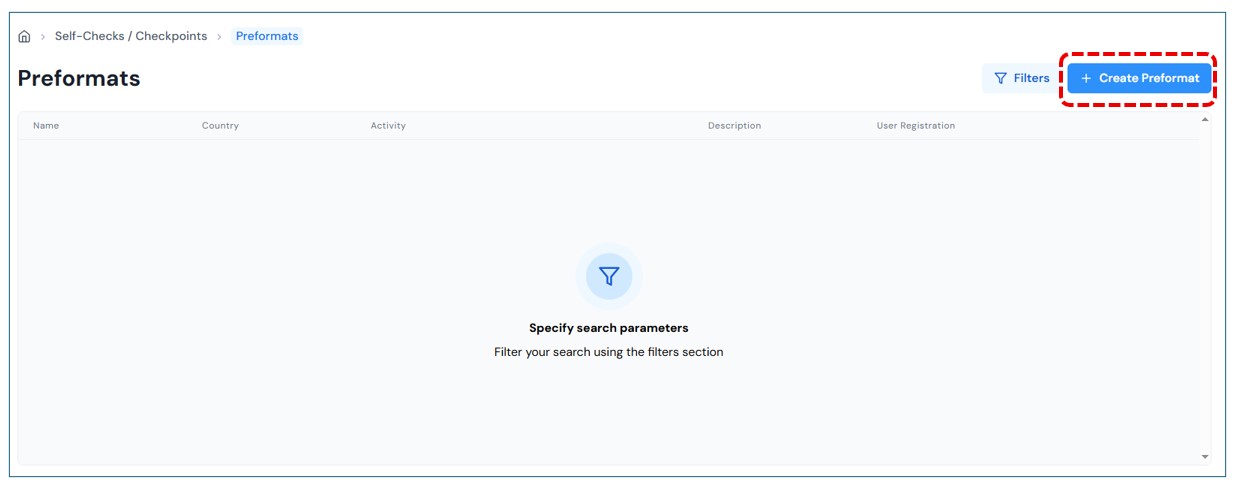
Create Preformat
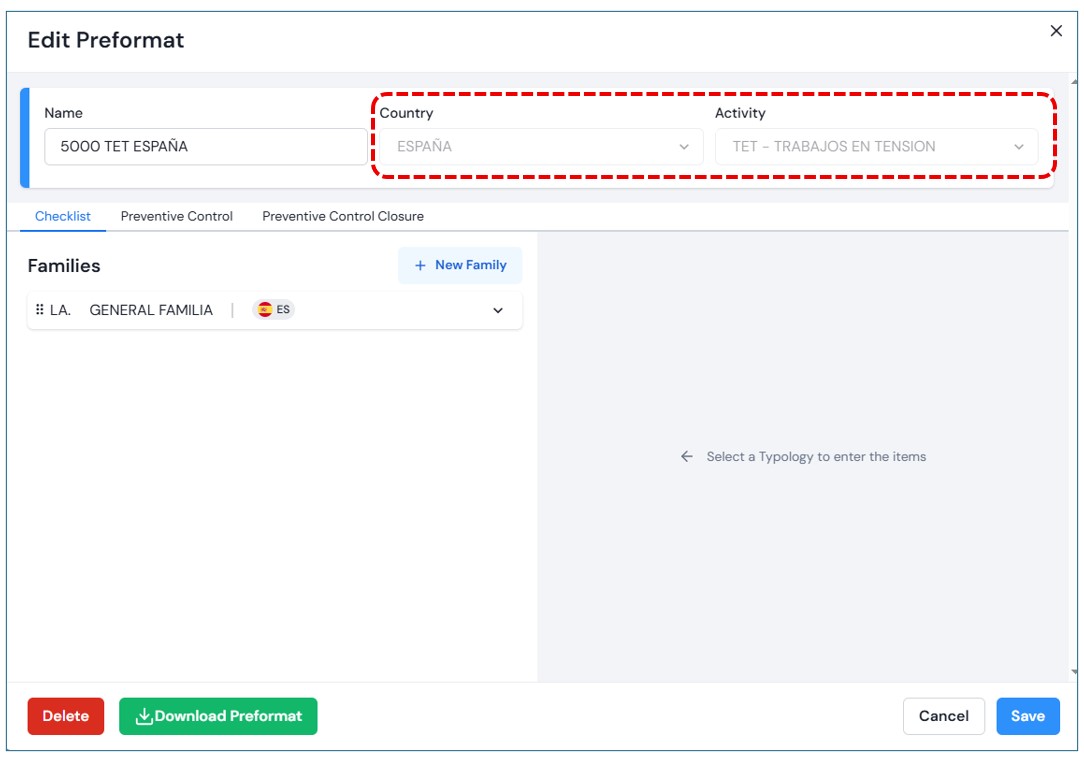
Select the “Create preformat” button and a will open where you must complete the following fields:
- Name
- Country
- Activity
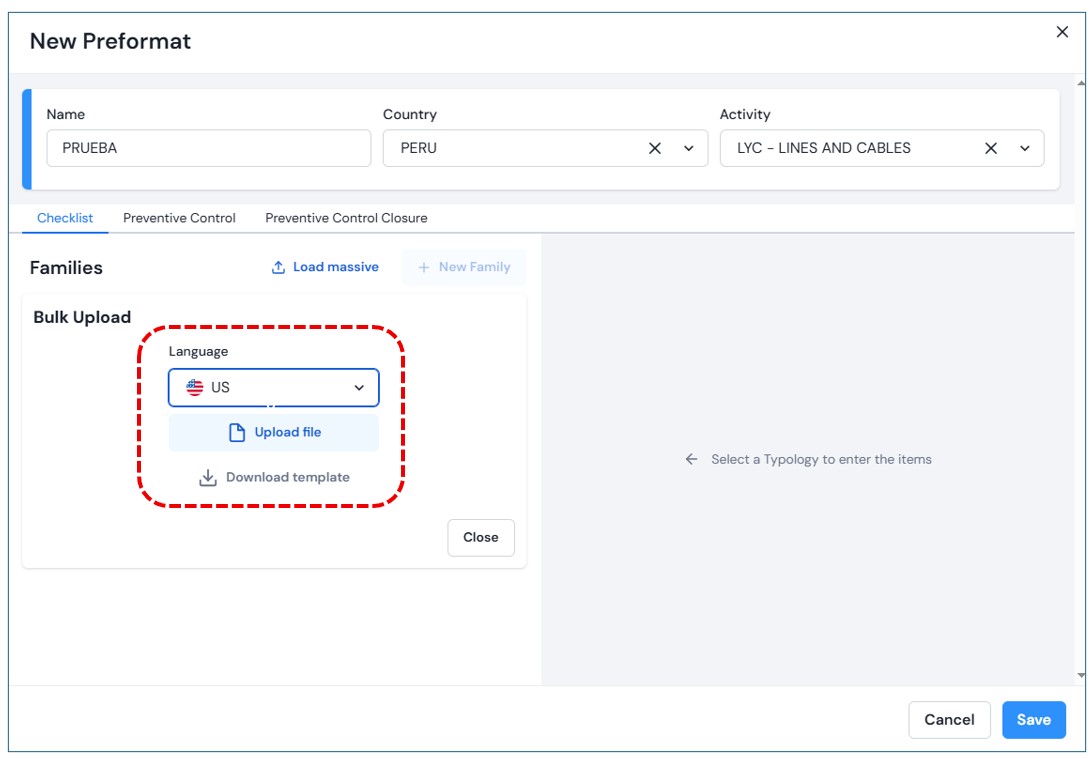
Once the fields are completed, the options in the tabs Auto-checklist, Preventive Control and , and Preventive Control Closure.In this section, you will see the families associated with the selected activity. You may also upload them in bulk via an Excel file or add them individually.
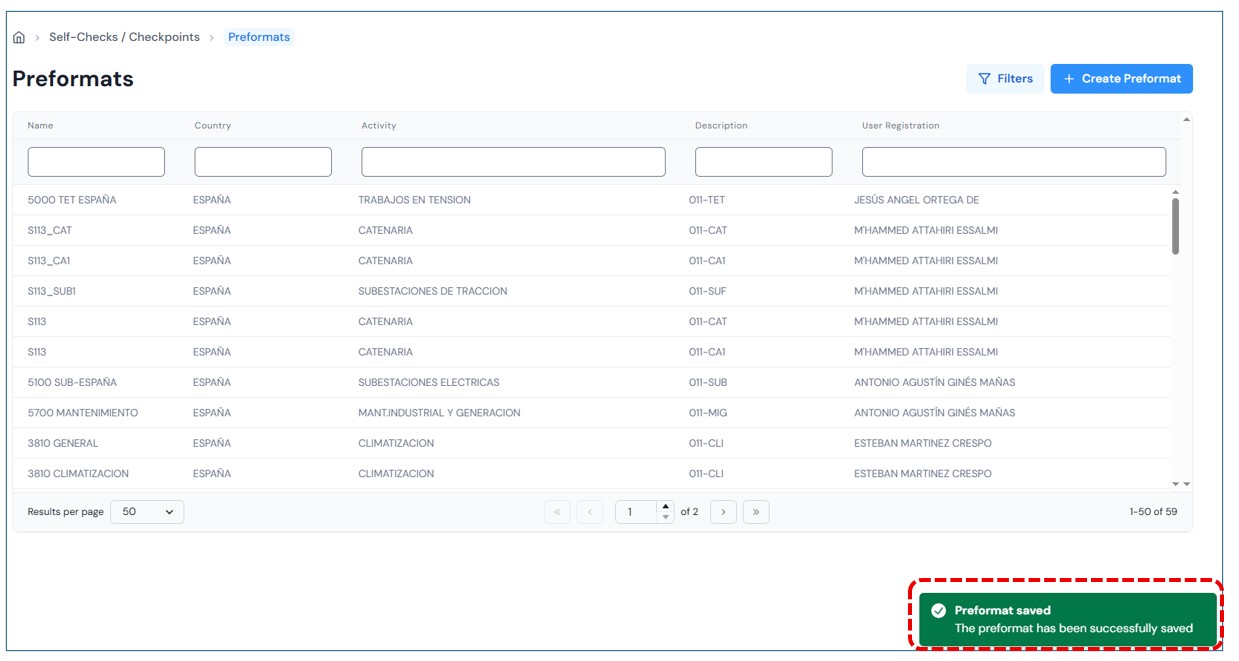
After completing the form and selecting Save the new preformat will be displayed in the the results panel.
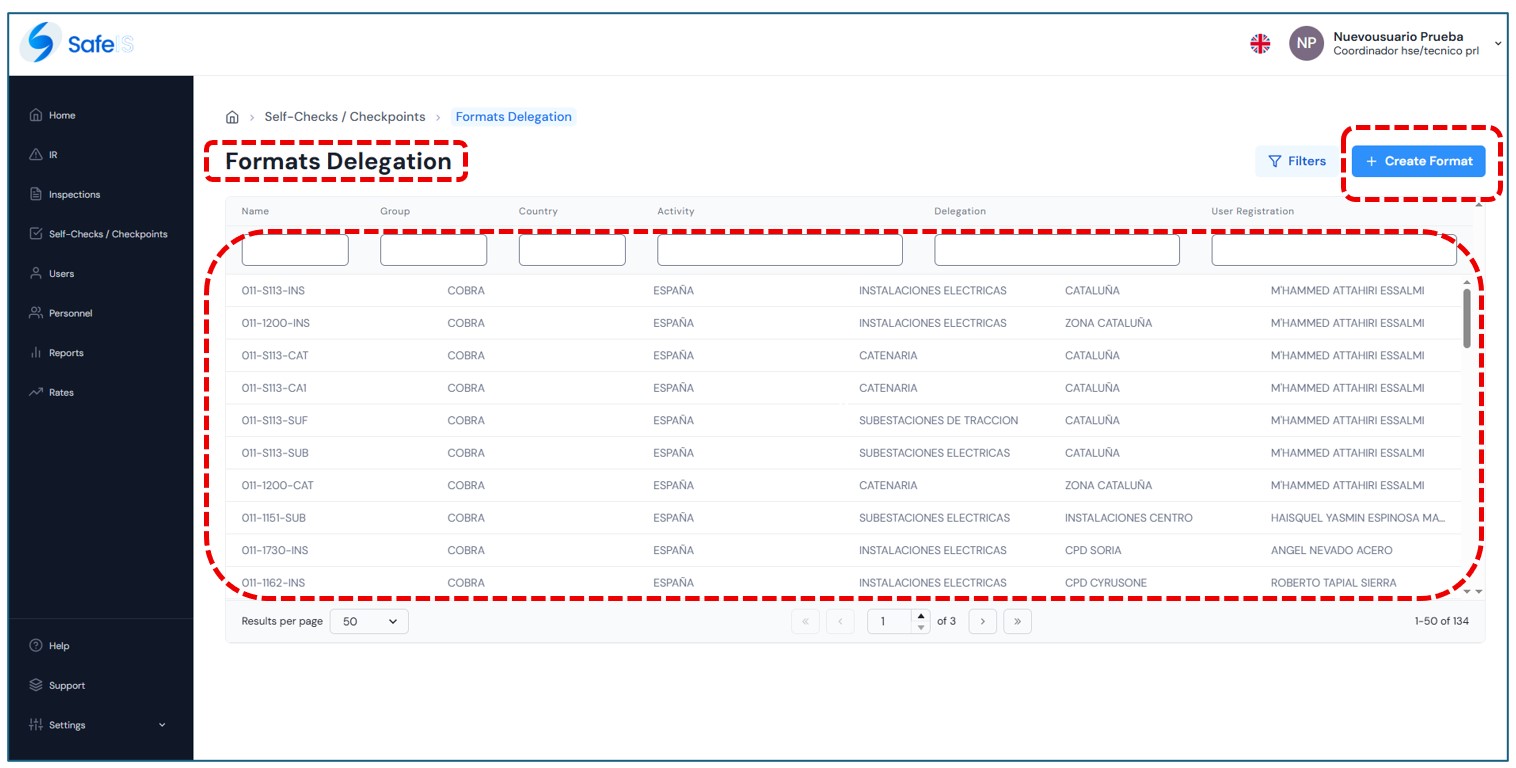
Upon entering this module, the home page is displayed with the filter panel open, allowing users to perform searches as needed. The filter includes the following fields:
- Search
- Country
- Activity
- Delegation
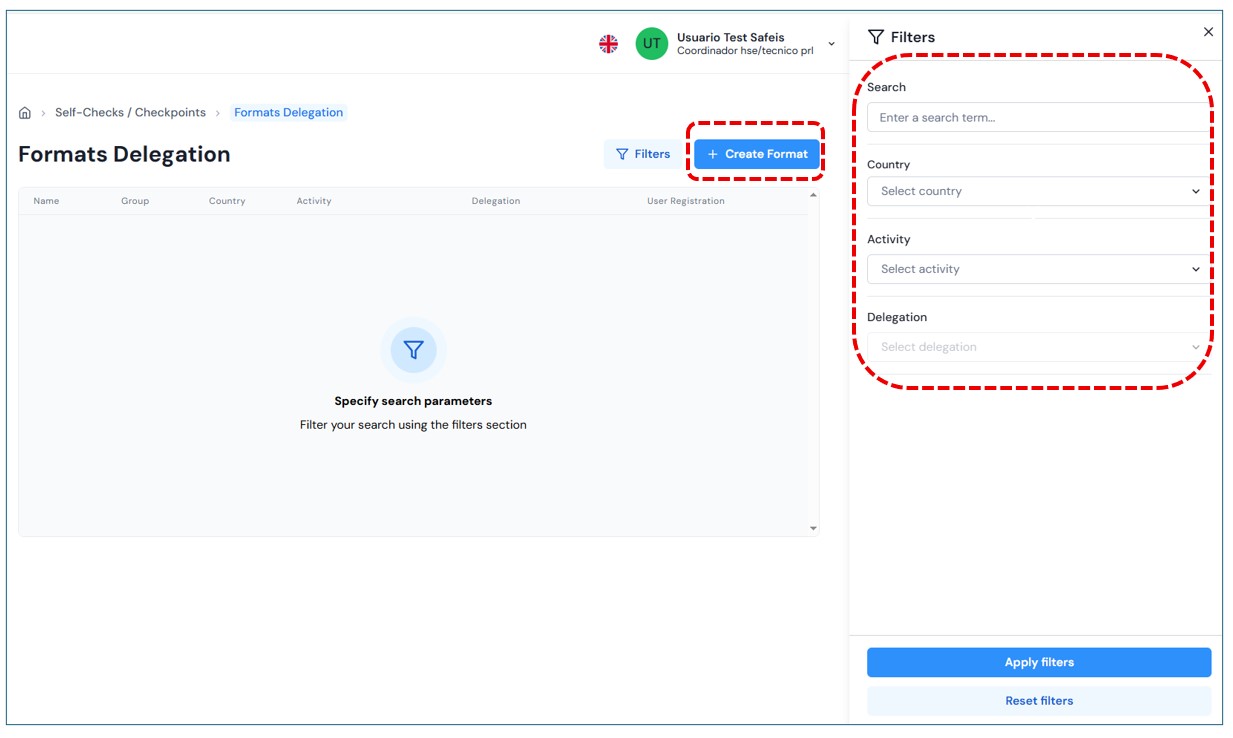
Create Format
When selecting Create Format, a pop-up window will open requesting the following fields:
- Preformat
- Group
- Country
- Activity
- Delegation
Once the Preformat field is entered, the following fields will be auto-completed. Then, select the corresponding Delegation.
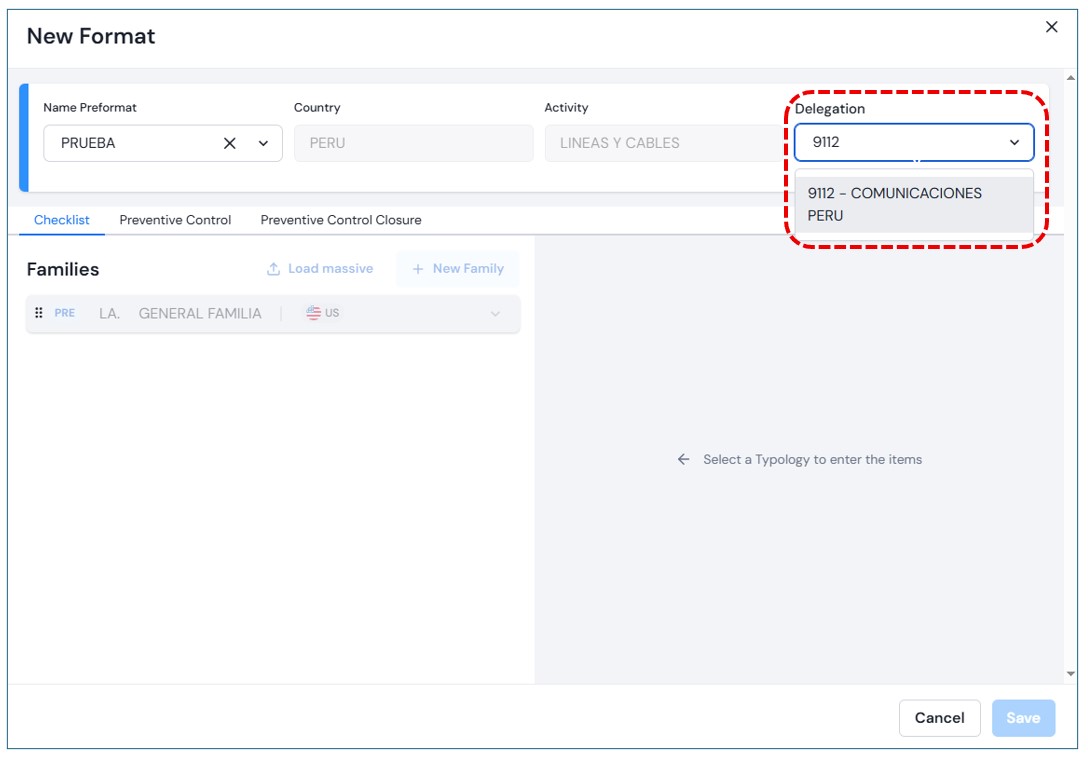
As with the preformat, the sections Auto-Checklist, Preventive Control, and Preventive Control Closure will appear, displaying the families associated with the selected preformat. Families may also be uploaded in bulk or individually.
Save Preformat: Once the form is completed and Save is selected, the new preformat will be displayed in the results panel.